
The Outbound Bid Requests report shows the bid requests (pings) Ringba sends to your ring tree targets (RTTs), and what happened to each one. You can use this report to see:
- How many pings your RTTs accepted
- Why your RTTs rejected some pings
- The request and response for any ping
This feature is available to admin users on accounts that use ring trees. It is available in the following Ringba subscription plans: Professional and Enterprise.
This article contains the following sections:
Outbound Bid Requests
An outbound bid request is a ping your account sends to your RTTs to request they return a bid for a call you want to sell. Your account sends a separate bid request to each RTT, so your total number of outbound bid requests is higher than the number of calls you have to sell if you ping multiple RTTs. For example, if you have one call to sell and ping 9 RTTs to request bids, your report shows 9 outbound bid requests related to that single call.
The number of responses you receive to your outbound bid requests is equal to the number of outbound bid requests you sent. If an RTT does not respond to your ping, this report includes the lack of response in the Not Accepted value.
Note: If you receive a bid request from another party through Real Time Bidding (RTB) with Pass Through, and then, in turn, send outbound bid requests to your own RTTs, the ping you received from the other party spawns many outbound bid requests. Each of those receives one response, and RTB collapses those back down to one response you sent back to the original party that originally sent you the bid request.
The next step after counting the total outbound bid requests is to determine how many were accepted. "Accepted" means the RTT sent a response that wasn't an error message and passed every check Ringba applies, including checking the response against requirements about:
- Call acceptance parsing rules
- Bid amount
- Phone number
- Call duration
- Minimum revenue settings
If the bid fails any of those checks, or the ping times out or the request fails, it isn’t accepted.
Ringba considers only accepted responses when determining the winning bid.
Outbound Bid Requests Screen
You navigate to the Outbound Bid Requests screen by clicking Insights > Outbound Bid Requests in the navigation bar.
Configuring the Report
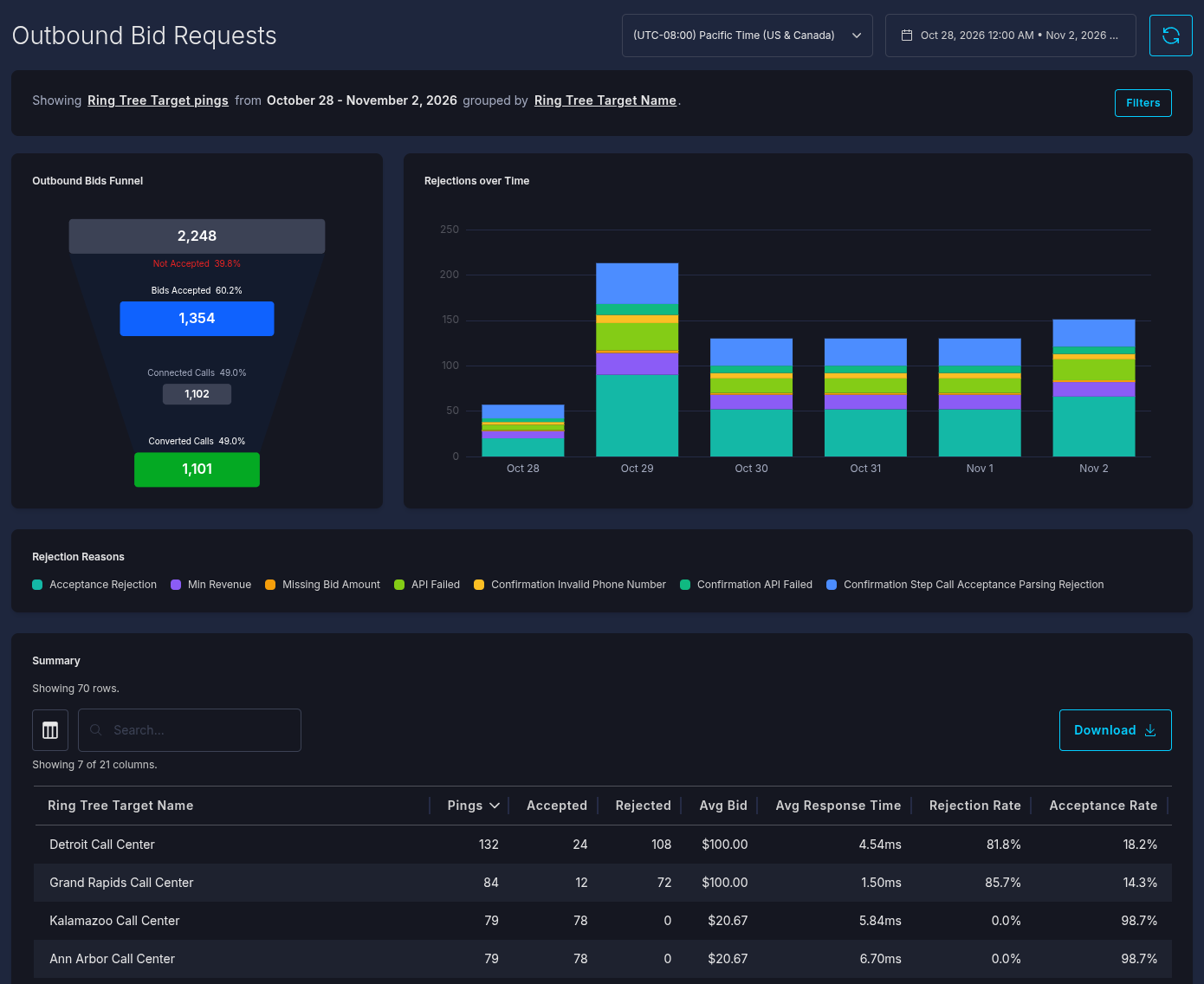
Use the tools at the top of the screen to set up the report.

You see the following tools:
- Time Zone: Select the time zone for the dates and times you see on the report.
- Date Range: Select the date range of the data you want to see in the report.
- Refresh: Click the refresh button to reload the report with the latest data.
Below the filters, you see a line of text like the following:
Showing Ring Tree Target pings from [your dates] grouped by [your grouping].
Click the underlined words to open a drawer where you can filter the data in the report.
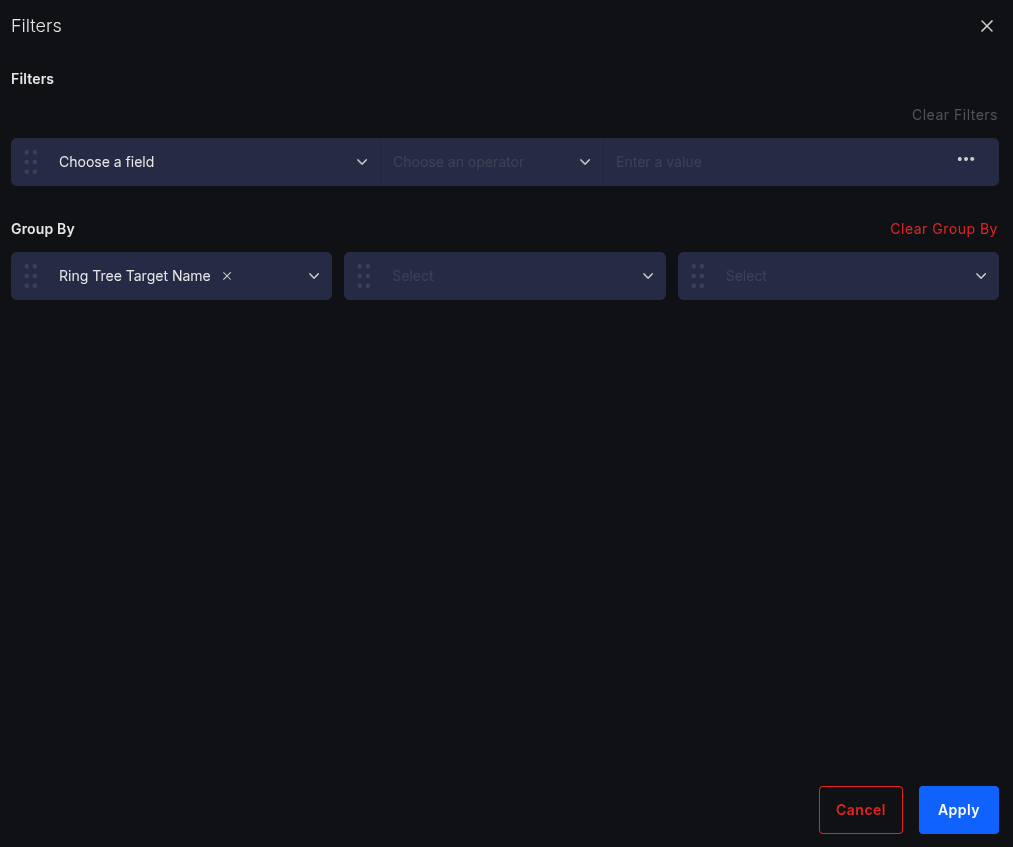
In the Filters section, you can choose a field, operator, and value. You can click the three-dot menu to add filters, add nested filters, or delete filters.
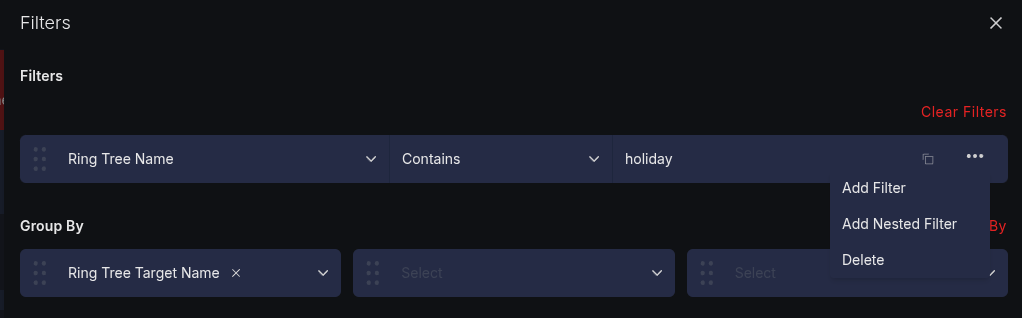
When you click Add Filter, you can build more sophisticated filters with And and Or operators.
In the Group By section, choose up to three fields to group the Summary table by. Drag the fields to change their order.
Outbound Bids Funnel
The Outbound Bids Funnel starts with the total outbound bid requests at the top of the funnel and follows every bid request in the date range down to its conclusion. The funnel counts every outbound bid request in the date range for the whole account. It does not change when you add filters in the Filters drawer. The percentages are a share of the total outbound bid requests.
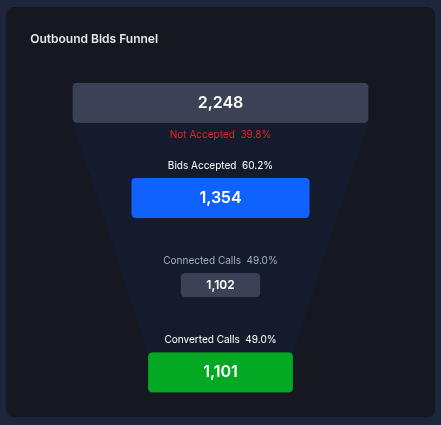
The Outbound Bids Funnel includes the following data:
- Total Outbound Bid Requests: The number of pings sent to your ring tree targets.
- Bids Accepted: The number of responses your account accepted. "Accepted" means the response wasn't an error message and passed every check Ringba applies. See the Outbound Bid Requests section earlier in this article for more information.
- Connected Calls: The number of accepted bids whose calls connected to a target.
- Converted Calls: The number of connected calls that converted.
The caption below Total Outbound Bid Requests shows the Not Accepted share. Every percentage is measured against the number of total outbound bid requests. Hover over a stage to see its count and percentage.
Rejections over Time
The Rejections over Time chart is a stacked bar chart of rejected pings by day or by hour. Each color in a bar is a rejection reason.
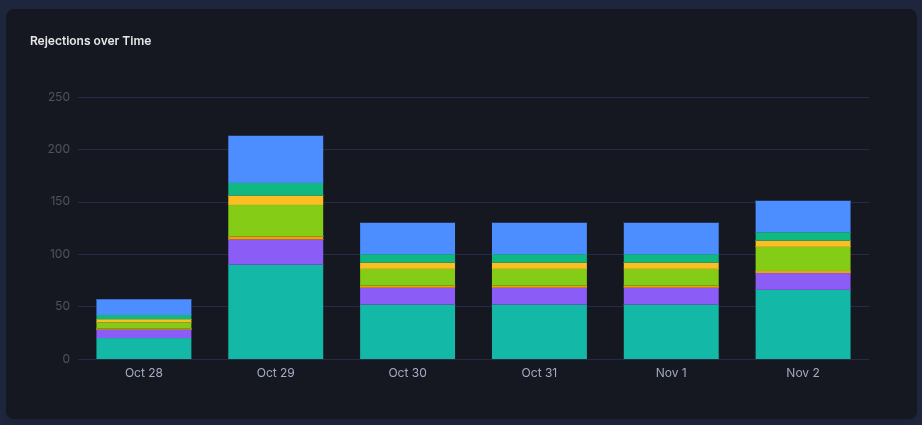
Hover over a segment to see its count, along with the total for that day or hour.
Rejection Reasons
The Rejection Reasons section is the key for the Rejections over Time chart.

Click a reason to highlight it in the chart and dim the others. Click more reasons to highlight them too, and click a highlighted reason again to remove it. Highlighting a reason only changes the chart. It does not filter the Summary or Details tables.
The possible rejection reasons are:
- Acceptance Rejection: The number of bids rejected during the call acceptance parsing step.
- Min Revenue: The number of calls where the bid didn't meet the minimum revenue setting.
- Missing Bid Amount: The number of ring tree target responses with no bid amount.
- Invalid Phone Number: The number of ring tree target responses with an invalid phone number.
- Duration Exceeded: The number of calls where the duration the buyer required to pay out exceeded the value you set in the Max dynamic duration field on the ring tree.
- API Failed: The number of times the attempt to ping the ring tree target failed.
- Ping Timeout: The number of times the ring tree target response took longer than the maximum wait time you set in the Ping Timeout field in your ring tree or ring tree target settings.
- Confirmation Invalid Phone Number: The number of ring tree target confirmation request responses with an invalid phone number.
- Confirmation API Failed: The number of times the attempt to send the confirmation request to the ring tree target failed.
- Confirmation Ping Timeout: The number of times the ring tree target confirmation request response took longer than the maximum wait time you set in the Confirmation Request Timeout field in your ring tree or ring tree target settings.
- Strike Price Disregarded: The number of pings Ringba stopped waiting for because another ring tree target met the strike price first. See Strike Price.
- Confirmation Step Call Acceptance Parsing Rejection: The number of ring tree target confirmation request responses that didn’t pass the call acceptance rules set for the confirmation request.
- Unknown: The number of rejections Ringba couldn’t match to one of the reasons above.
Summary
A table appears with a row for each group of pings, grouped by the fields in your query. You can control which columns appear in the table by clicking the table icon to the left of the search. You can export a CSV of your outbound bid request summary by clicking the Download button.
Some columns are hidden by default, including the rejection reason columns. To show them, click the table icon and select the columns you want. The text under the table icon shows how many of the available columns are visible.
When you group by more than one field, you can click to expand each row to show the next level of grouping inside it. Click a row to show only that row's pings in the Details table.
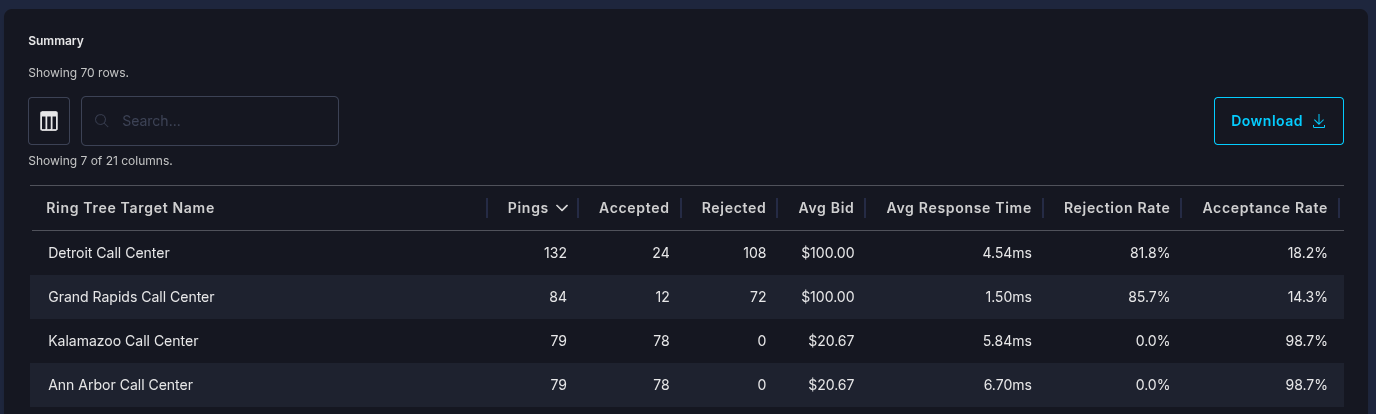
The table contains the following columns:
- (Group By fields): One column for each field you group by, such as Ring Tree Target Name or Campaign. These columns always appear first.
- Ring Tree Target Name: The name of the ring tree target. This column shows "—" unless you group by Ring Tree Target Name.
- Ring Tree Target ID: The ID of the ring tree target. Hidden by default. This column shows "—" unless you group by Ring Tree Target ID.
- Pings: The number of pings sent.
- Accepted: The number of pings the target accepted.
- Rejected: The number of pings the target rejected, for any reason.
- (One column per rejection reason): The number of pings rejected for that reason, such as Min Revenue or Ping Timeout. Hidden by default. See Rejection Reasons earlier in this article for the full list.
- Avg Bid: The average bid amount of the accepted pings.
- Avg Response Time: The average time the target took to respond, across all pings.
- Rejection Rate: Rejected pings as a percentage of all pings.
- Acceptance Rate: Accepted pings as a percentage of all pings.
You can click the column headers to sort the table by the value in that field. Click the header again to reverse the sort, and click it a third time to remove the sort.
Details
When you click a group in the Summary table, this table contains a row for each ping in the group. You can control which columns appear in the table by clicking the table icon to the left of the search. You can export a CSV of your outbound bid request summary by clicking the Download button.
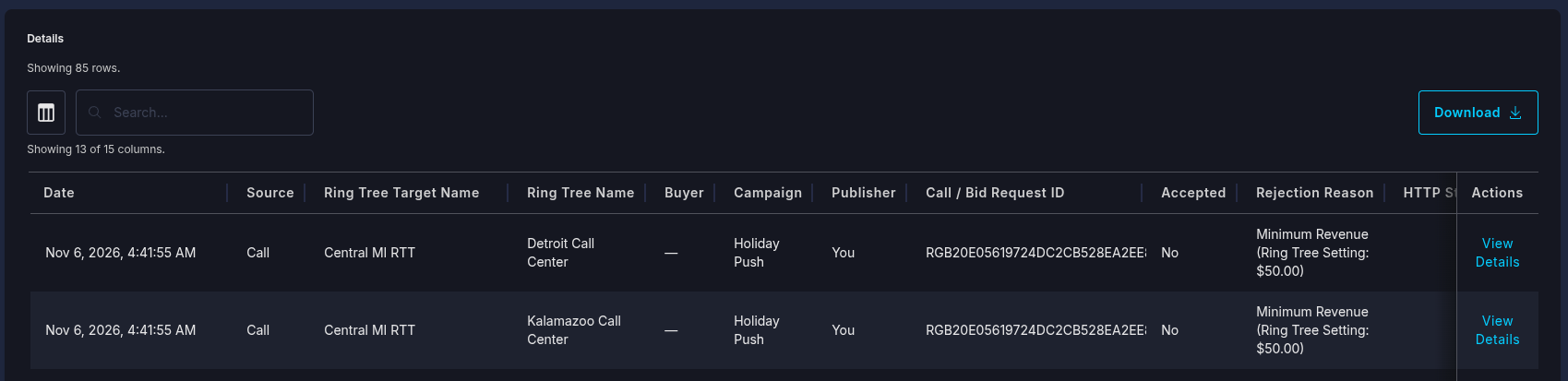
The table contains the following columns:
- Date: The date and time the ping was sent, in the selected time zone.
- Source: Whether the ping came from a Call or an RTB bid request.
- Ring Tree Target Name: The RTT that received the ping.
- Ring Tree Target ID: The ID of the RTT. Hidden by default.
- Ring Tree Name: The ring tree the RTT belongs to.
- Ring Tree ID: The ID of the ring tree. Hidden by default.
- Buyer: The buyer that owns the RTT.
- Campaign: The campaign the call or bid request came in to.
- Publisher: The publisher that sent the call or bid request.
- Call / Bid Request ID: The ID of the inbound call or bid request that triggered the ping.
- Accepted: Whether the target accepted the ping.
- Rejection Reason: Why the ping was rejected, if it was.
- HTTP Status Code: The HTTP status code the target returned.
- Response Time: How long the target took to respond.
- Bid Amount: The amount the target bid.
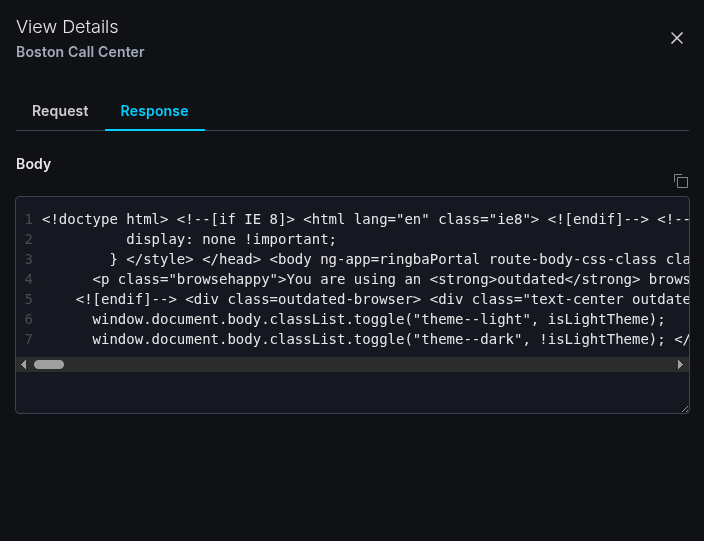
- Actions: Click View Details in this column to see the URL and body of the request and the body of the response. See the How to View the Request and Response of a Ping section later in this article.
You can click the column headers to sort the table by the value in that field. Click the header again to reverse the sort, and click it a third time to remove the sort.
How to View the Request and Response of a Ping
Use the following steps to view the request and response of a ping:
- In the Details table, find the ping. You can type in the search box to find a ping by its Call / Bid Request ID or another value in the table.
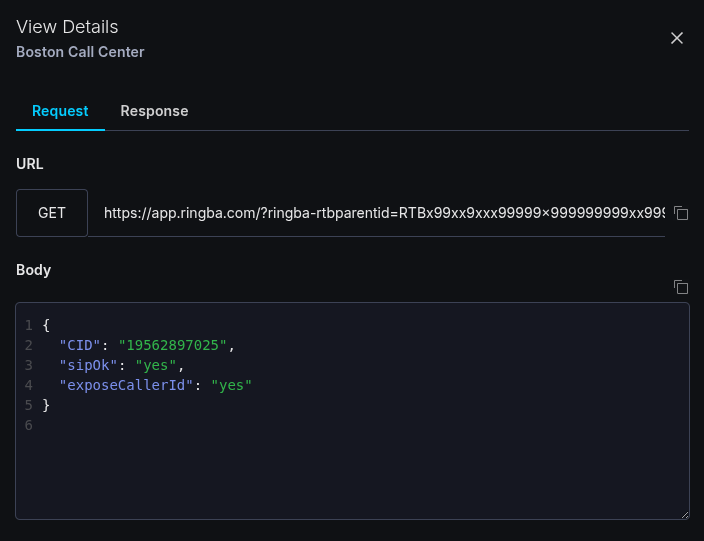
- Click View Details in the Actions column. The View Details drawer opens.
-
On the Request tab, see the URL Ringba sent the ping to and the request body.
-
Click the Response tab to see the response the target returned.
How to Export a Spreadsheet of Outbound Bid Requests
Use the following steps to export a spreadsheet of outbound bid requests:
- On the Outbound Bid Requests screen, set up the query and table the way you want them. The export contains the rows the table is showing, including any search you typed in the table.
- Click Download above the Summary table or the Details table.
A CSV file downloads to your browser's default download location. It contains only the columns visible in the table, so hidden columns are left out.
Outbound Bid Requests FAQ
Why doesn't the Outbound Bids Funnel change when I add filters?
The funnel always counts every outbound bid request in your account for the selected date range. Filters and grouping in the Filters drawer change the Rejections over Time chart and the tables, but not the funnel.
Why does an average show "—" on a row that has rows inside it?
When you group by more than one field, a top-level row's counts and rates add up the rows inside it. An average can't always be rebuilt from the averages of the rows inside it. When it can't, the row shows "—" instead of an incorrect number.
Why does the screen ask me to choose a shorter date range?
When you group by Day or Hour, the screen can show a limited number of days or hours. If your date range is longer than that, the Filters drawer asks you to choose a shorter date range.
Can I share or bookmark a query?
Yes. The screen's web address includes your time zone, date range, filters and grouping. Copy the address from your browser to bookmark it or send it to another admin on your account.
What should I do if I need help?
If you have any questions or need additional help, please reach out to our support team via chat or email at support@ringba.com.