
The Inbound Bid Requests screen shows how Ringba handled the bid requests (pings) your publishers sent to your RTB campaigns over a date range you choose. You can see how many requests arrived, how many bids were returned or declined and why, and how many returned bids became calls. You can then drill down to the individual bid requests behind any publisher, campaign, or date.
Use this screen to troubleshoot when a publisher reports low acceptance or missing calls.
This feature is available to users with the Admin or Report Access role. It is available to any account with a Real Time Bidding (RTB) subscription.
This article contains the following sections:
Understanding How Ringba Counts Inbound Bid Requests
Every bid request ends in one of three outcomes, so the counts add up:
- Bids Declined + Bids Returned + Cached Response = Bid Requests
- Bids Called + Bids Not Called = Bids Returned
A few rules decide where a request is counted:
- Zero bids are declined. A bid of $0 counts under Zero Bid and toward Bids Declined. Bids Returned counts only bids above $0.
- Cached responses are neither declined nor returned. They count only under Cached Response. A cached response reuses the original Bid ID, so the Inbound Bid Details table shows only the original request.
- Some requests are counted but not listed. Requests declined as rate limited (1024, 1025, 1026) or with missing or invalid data (3024), and cached responses, are counted in the charts and the Inbound Bid Summary table, but are not recorded one by one. They don't appear in the Inbound Bid Details table and can't be searched.
- Calls come from your call records. On very short date ranges, Call % can go slightly above 100%, because a call can fall inside the date range while its bid falls just outside it.
Inbound Bid Requests Screen
You navigate to the Inbound Bid Requests screen by clicking Insights > Inbound Bid Requests.
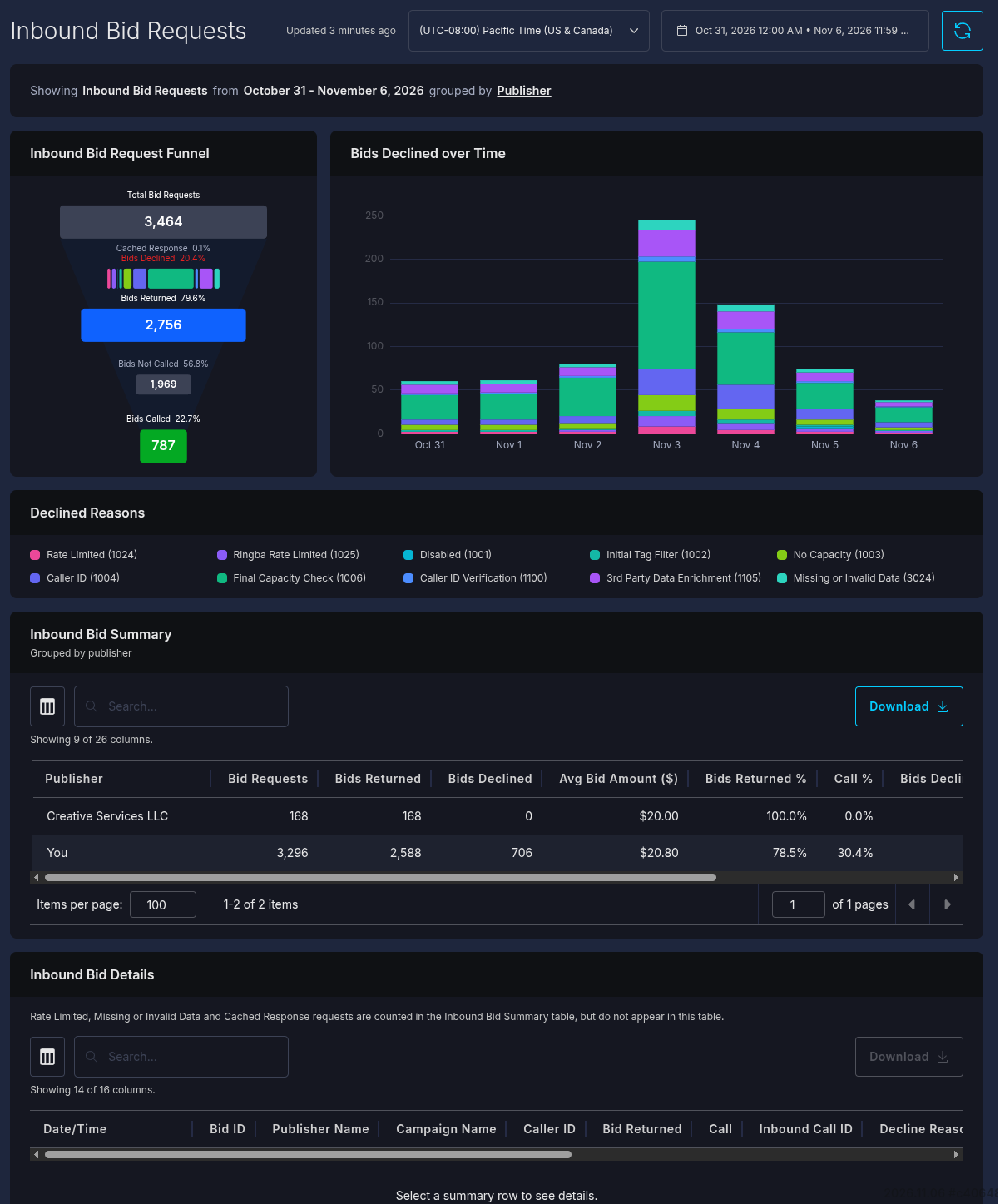
Use the tools at the top right of the screen to choose the time zone and the date range. You can choose a date range of up to 31 days from within the last 31 days. If part of the date range you choose falls outside the data available, a notice tells you which dates are shown.
The date range applies to every section of the screen, and all dates and times show in the time zone you choose. Click the refresh button to reload the data. The text next to the time zone shows how long ago the data was updated.
Below the header, a sentence describes what the screen shows, for example: "Showing Inbound Bid Requests from November 4, 2026 grouped by Publisher". Click the underlined Group By value to change how the Inbound Bid Summary table groups its rows. You can group by Publisher, Campaign, or Date, or by two of them nested, such as Publisher > Campaign.
Inbound Bid Request Funnel
The funnel shows how the bid requests in the date range were handled.
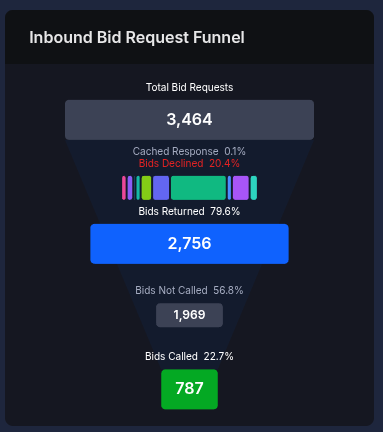
The following levels appear in the funnel:
- Total Bid Requests: Every bid request your publishers sent.
- Cached Response and Bids Declined: The percentage of requests answered with a cached response, and the percentage declined. The colored bar under them breaks the declined bids down by decline reason. Hover over a segment to see its count and its share of the declined bids.
- Bids Returned: The requests Ringba answered with a bid above $0.
- Bids Not Called: Returned bids that did not become a call.
- Bids Called: Returned bids that became a call.
The charts are for viewing only: clicking a chart or a legend entry does not filter the screen.
Bids Declined over Time
The Bids Declined over Time graph is a stacked-bar chart of declined bids over the date range, with one color for each decline reason.
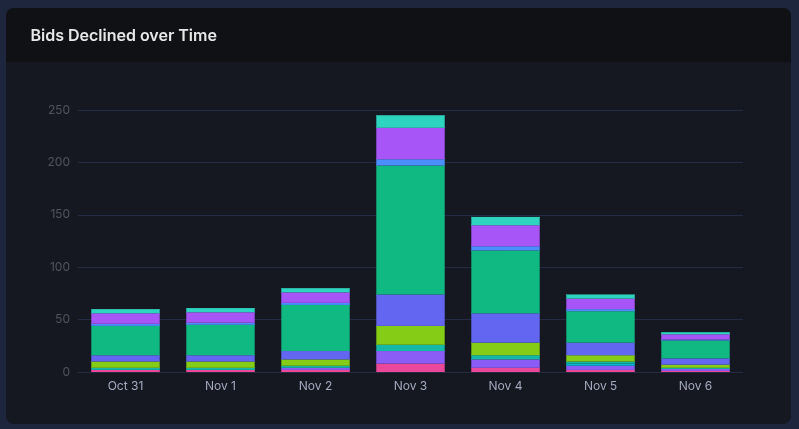
Each bar covers an hour for date ranges shorter than two days, and a day for longer ranges. The Declined Reasons legend below the charts names the reason for each color. Cached responses are not declined bids, so they do not appear in this chart.

Inbound Bid Summary Table
A table appears with a row for each publisher, campaign, or date, depending on your Group By choice. When you group by two levels, each row expands to show the rows of the second level beneath it, and its counts are the totals of those rows.
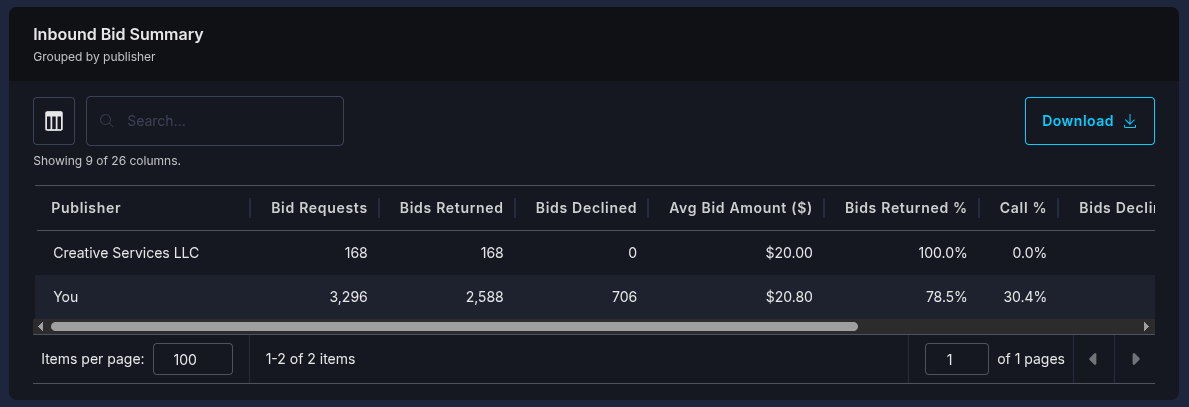
You can control which columns appear in the table by clicking the column icon to the left of the search. You can search the table, and you can export a CSV of it by clicking the Download button.
The table contains the following columns:
- Publisher, Campaign, or Date: The value the row is grouped by. When you group by two levels, both columns appear side by side.
- Publisher ID or Campaign ID: The ID of the publisher or campaign in the row. Hidden by default.
- Bid Requests: The number of bid requests received.
- Bids Returned: The number of requests Ringba answered with a bid above $0.
- Bids Declined: The number of requests Ringba declined, for any reason.
- Cached Response: The number of requests answered with a cached response. Hidden by default.
- Decline reason columns: One column for each decline reason in the report, with the number of requests declined for that reason. These columns are hidden by default. You can find a definition of each code by visiting RTB Error Codes.
- Avg Bid Amount ($): The total amount of the returned bids divided by the number of bids returned.
- Bids Returned %: Bids returned as a percentage of bid requests.
- Call %: Bids called as a percentage of bids returned.
- Bids Declined %: Bids declined as a percentage of bid requests.
- Rate Limited %: Requests declined with codes 1024, 1025, and 1026, as a percentage of bid requests.
- Cached Response %: Cached responses as a percentage of bid requests.
You can click the column headers to sort the table by the value in that field. Click the header again to reverse the sort, and click it a third time to remove the sort.
Click a row to see its bid requests in the Inbound Bid Details table. The selected row is marked with a bar on its left. Click the row again to clear the selection, or click another row to select it instead. When you group by two levels, you can also select a nested row: the Inbound Bid Details table then shows only the bid requests that match both of its values, such as one campaign of one publisher. Selecting a row changes only the Inbound Bid Details table; the charts and the summary stay as they are.
Inbound Bid Details Table
The Inbound Bid Details table is empty until you select a row in the Inbound Bid Summary table. A table then appears with a row for each bid request in the selected row, within the date range, newest first.
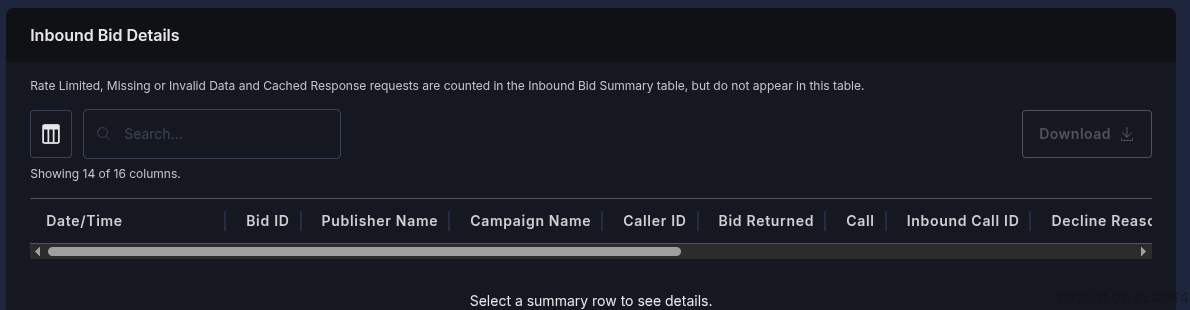
The table loads up to 2,000 bid requests. When more match, a notice shows how many were loaded out of the total; search and sorting apply only to the loaded rows.
You can control which columns appear in the table by clicking the column icon to the left of the search. You can search the table, and you can export a CSV of it. See How to Export a Spreadsheet of Inbound Bid Requests later in this article for step-by-step instructions.
The table contains the following columns:
- Date/Time: When Ringba received the bid request.
- Bid ID: The ID of the bid.
- Publisher Name: The publisher that sent the request.
- Publisher ID: The ID of the publisher. Hidden by default.
- Campaign Name: The campaign the request was sent to.
- Campaign ID: The ID of the campaign. Hidden by default.
-
Caller ID: The caller's phone number. It appears only when the publisher sent
exposeCallerId=truewith the request, or when the bid became a call. - Bid Returned: Yes if Ringba returned a bid above $0, otherwise No.
- Call: Yes if the bid became a call, otherwise No.
- Inbound Call ID: The ID of the call, when the bid became a call.
- Decline Reason: Why Ringba declined the request. Empty for a returned bid.
- Decline Code: The code of the decline reason. A zero bid has no code.
- Bid DID: The phone number, or SIP address, returned with the bid.
- Bid Amount: The amount of the bid.
- Bid Expiration Time: When the returned bid expires.
- Bid Expires (secs): The number of seconds the returned bid was valid for.
You can click the column headers to sort the table by the value in that field. Click the header again to reverse the sort, and click it a third time to remove the sort.
Note: Rate Limited, Missing or Invalid Data, and Cached Response requests are counted in the Inbound Bid Summary table, but do not appear in the Inbound Bid Details table. See Understanding How Ringba Counts Inbound Bid Requests later in this article.
How to Troubleshoot a Publisher's Inbound Bid Requests
Use the following steps to troubleshoot a publisher's inbound bid requests:
- Navigate to Insights > Inbound Bid Requests.
- Choose the time zone and the date range you want to review.
- Check that the sentence below the header reads grouped by Publisher. If it doesn't, click the Group By value and choose Publisher.
- In the Inbound Bid Summary table, find the publisher's row and compare its Bids Returned %, Bids Declined %, and Call % with your other publishers.
- To see why bids were declined, click the column icon and show the decline reason columns, or hover over the segments of the funnel.
- Click the publisher's row to load its bid requests into the Inbound Bid Details table.
- Review the Decline Reason and Decline Code columns, or search the table for a Bid ID or caller ID.
To compare the publisher's campaigns, group by Publisher > Campaign and expand the publisher's row.
How to Export a Spreadsheet of Inbound Bid Requests
Use the following steps to export a spreadsheet of inbound bid requests:
- Navigate to Insights > Inbound Bid Requests, and choose the date range and Group By you want.
- To export bid details, click a row in the Inbound Bid Summary table to load the Inbound Bid Details table.
- Optionally, enter text in the table's search box to narrow the rows.
- Click Download on the table you want to export.
Ringba downloads a CSV file to your browser's downloads folder with every loaded row of that table that matches your search, not only the rows on the current table page. The CSV contains only the columns that are visible in the table. When you group the Inbound Bid Summary table by two levels, the CSV contains a row for each second-level row.
Note: Users who don't have permission to export reports don't see the Download buttons.
Inbound Bid Requests FAQ
Why don't I see some declined requests in the Inbound Bid Details table?
Rate limited requests (1024, 1025, 1026), requests with missing or invalid data (3024), and cached responses are only counted, not recorded one by one. They appear in the charts and the Inbound Bid Summary table, but not in the Inbound Bid Details table.
Why is the Inbound Bid Details table empty?
The table loads only after you select a row in the Inbound Bid Summary table. Click a row to see its bid requests.
Why is the Caller ID column empty for some bids?
The caller ID appears only when the publisher sent exposeCallerId=true with the bid request, or when the bid became a call.
Can I filter the screen by publisher or campaign?
You can narrow the Inbound Bid Details table by selecting a publisher, campaign, or date row in the Inbound Bid Summary table, and you can search either table. The charts always show the whole date range.
How far back can I see inbound bid requests?
You can view any date range of up to 31 days from within the last 31 days.
What should I do if I need help?
If you have any questions or need additional help, please reach out to our support team via chat or email at support@ringba.com.