
Number blocking lets you specify numbers, area codes, or country codes you do not want to receive calls from. When a call comes into Ringba from a blocked number, Ringba automatically terminates the call and increments the Blocked column on the Summary report.
In addition to blocking individual numbers, you can upload a file of numbers you want to block. You can block numbers from calling your entire account or individual campaigns.
This feature is available to admin users. This feature is included in all Ringba subscription plans: Business, Professional, and Enterprise.
Blocking Numbers
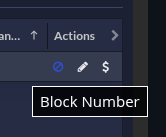
You can block numbers that have already called you from the Call Details Report. Find the call from the number you want to block and click the Block Number icon in the Actions column.
To block numbers regardless of whether they've called you previously, navigate to the Manage Blocked Numbers screen.
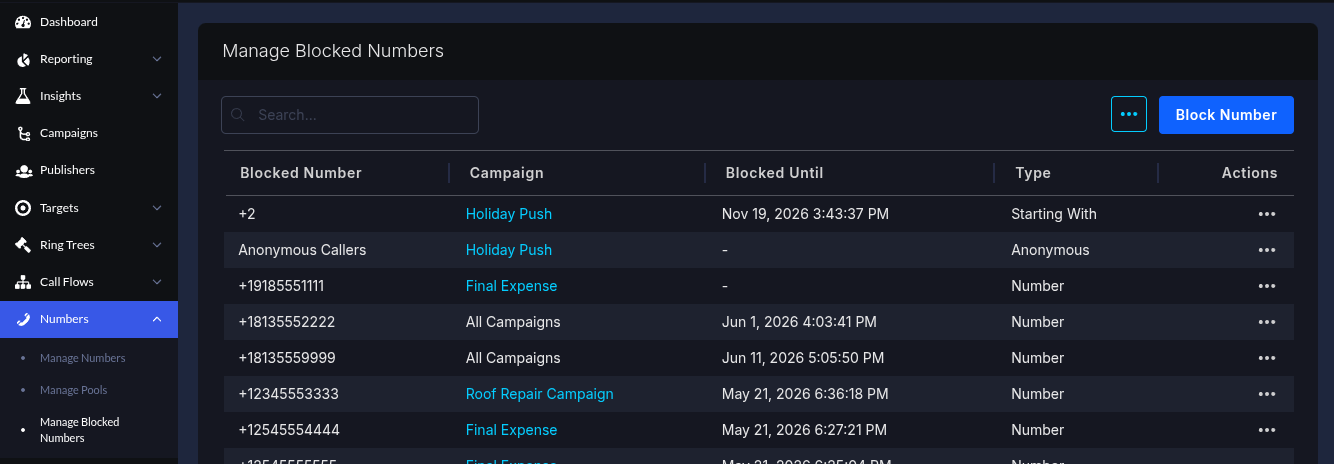
This table shows a row for each number you have blocked, regardless of whether you blocked the number individually or as part of a file you uploaded. The table contains these columns:
- Blocked Number: The phone number, partial phone number, area code, or country code that you blocked.
- Campaign: The campaign for which this number is blocked. If you blocked it for your whole account, this column shows All Campaigns.
- Blocked Until: If you blocked the number temporarily, this column shows when the number becomes unblocked.
-
Type: Indicates how the number came to be blocked. This column can contain:
- Anonymous: Anonymous calls are blocked for this campaign
- List: Uploaded as part of a list of numbers to block.
- Number: Blocked individually.
- Starting With: A country code, area code, or partial phone number that is blocked.
- Actions: Click the three-dot button in this column to open a menu of actions you can perform on a blocked number. See Available Actions on a Row later in this article.
Available Actions on a Row
The Actions column contains a three-dot button. Click the button to open a menu of actions you can use to manage blocked numbers.
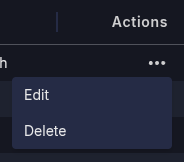
Click the items in the menu to perform the following actions:
- Edit: Open the Edit drawer to update the name and other information.
- Delete: Open the Delete drawer to remove the number from the list of blocked numbers.
Available Actions on this Screen
This screen features a three-dots button next to the Block Number button.
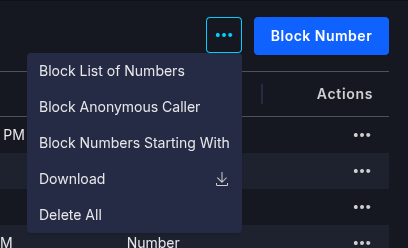
From this screen you can:
- Search for a number in the list by using the Search box.
- Block an individual number by clicking Block Number.
- Block a list of numbers. Start by clicking the three-dots button.
- Block calls from anonymous callers, where there is no caller ID. Start by clicking the three-dots button.
Note: You can also block anonymous calls as spam in the Spam Filter section of your campaign. - Block numbers starting with a country code, area code, or partial number. Start by clicking the three-dots button.
- Download a list of all your blocked numbers. Start by clicking the three-dots button.
- Delete all numbers from the blocked number list. Start by clicking the three-dots button.
How to Block Individual Numbers or Partial Numbers
Though you click different options to start the process of blocking individual numbers and partial numbers, you complete the same fields for each.
Use the following steps:
- To block a single number, click the Block Number button to open the Block Number drawer.
To block a partial number, including a country code, country code plus area code, or country code plus area code plus partial phone number, click the three-dots button next to the Block Number button and choose Block Numbers Starting With from the list that appears to open the Block Numbers Starting With drawer. -
Complete the fields:
- Phone Number or Number Prefix: Enter the phone number or partial phone number that you want to block. For partial numbers, you can stop after the country code, area code, or prefix. Use E.164 format, so you should include + before all digits but not include any parentheses, dashes, or other characters.
-
Block For: Choose the campaign you want to block this number for or choose All Campaigns.
Tip: You can start typing a campaign name in the field to jump to it in your list of campaign. - Block Duration: Indicate how long this block lasts. You can choose Permanent or Time Limited. If you choose Time Limited, you indicate a number of hours in the next field.
- Hours: Enter a number of hours to block this number.
- Click Add.
How to Block a List of Numbers
Use the following steps:
- Click the three-dots button next to the Block Number button and choose Block List of Numbers from the list that appears to open the Block List of Numbers drawer.
-
Complete the fields:
- Numbers to Block: Click the Select File button and navigate to the file of numbers you want to block. You can upload a TXT or CSV file. Each number should be in E.164 format and should be separated by a line return or comma.
- Block For: Choose the campaign you want to block this number for or choose All Campaigns.
- Block Duration: Indicate how long this block lasts. You can choose Permanent or Time Limited. If you choose Time Limited, you indicate a number of hours in the next field.
- Hours: Enter a number of hours to block this number.
- Click Add.
How to Block Anonymous Callers
Use the following steps:
- Click the three-dots button next to the Block Number button and choose Block Anonymous Caller from the list that appears to open the Block Anonymous Caller drawer.
-
Complete the fields:
- Block For: Choose the campaign you want to block this number for or choose All Campaigns.
- Block Duration: Indicate how long this block lasts. You can choose Permanent or Time Limited. If you choose Time Limited, you indicate a number of hours in the next field.
- Hours: Enter a number of hours to block this number.
- Click Add.
Downloading a List of Blocked Numbers
You can click Download from the three dots button menu to download a CSV file with all the blocked numbers in your account. Ringba downloads the CSV to your default download location.
The CSV includes the same columns you see on the table when you navigate to Numbers > Manage Blocked Numbers.
How to Delete Numbers from the Blocked Numbers List
You can delete individual numbers from the blocked number list. If you delete a number from the list, you can receive calls from that number again. Use the following steps:
- Find the number you want to remove from the list.
- Click the three-dots button in the Actions column for that number.
- Click Delete.
You can also delete all numbers from the blocked numbers list. If you delete all numbers, you can receive calls from the numbers again. Use the following steps:
- Click the three-dots button next to the Block Number button.
- Select Delete All from the list that appears to open the Delete All drawer.
- Click Delete.
Number Blocking FAQ
What is E.164 Number Formatting?
E.164 is the international telephone numbering plan that ensures each device on the PSTN has globally unique number. E.164 numbers are formatted [+] [country code] [subscriber number including area code]. For example: +18005551234. See E.164 Number Formatting for more information.
Can Ringba store hashed values for number blocking?
Ringba does not verify hashed values. You must block numbers in plain text.
How can I block calls from certain countries?
Use the Block Numbers Starting With options that appears on the list when you click the three-dots button at the top of the screen, next to the Block Number button. Enter the country code in the Number Prefix field, complete the rest of the fields in the drawer, and click Add.
How can I tell how many calls have been blocked?
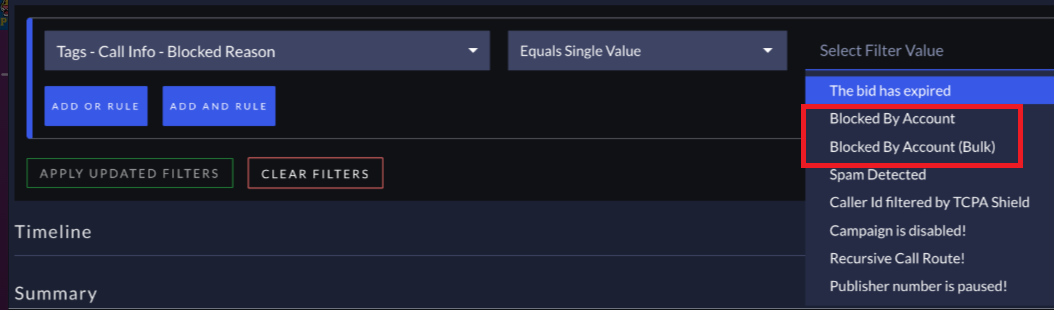
The Blocked column on the Summary report keeps a count of the calls that have been blocked. You can also filter the Reporting screen to show only calls that were blocked. Choose the Tags - Call Info - Blocked Reason filter and set the value to show the calls you want to see.
What should I do if I need help?
If you have any questions or need additional help, please reach out to our support team via chat or email at support@ringba.com.