
Login security keeps a log of every time Ringba signs you in or refreshes your session token.
This feature is available to admin users. It is included in all Ringba subscription plans: Business, Professional, and Enterprise.
This article contains the following sections:
Login Security Screen
You navigate to the Login Security screen by clicking Security > Login Security.
A table appears with a row for each time your credentials were used to sign in to your account and each time Ringba refreshed your token during your session. You can use the search field to search any value in the table. You can also click the Sign Out of All Devices button. See the Signing Out of All Devices section later in this article.
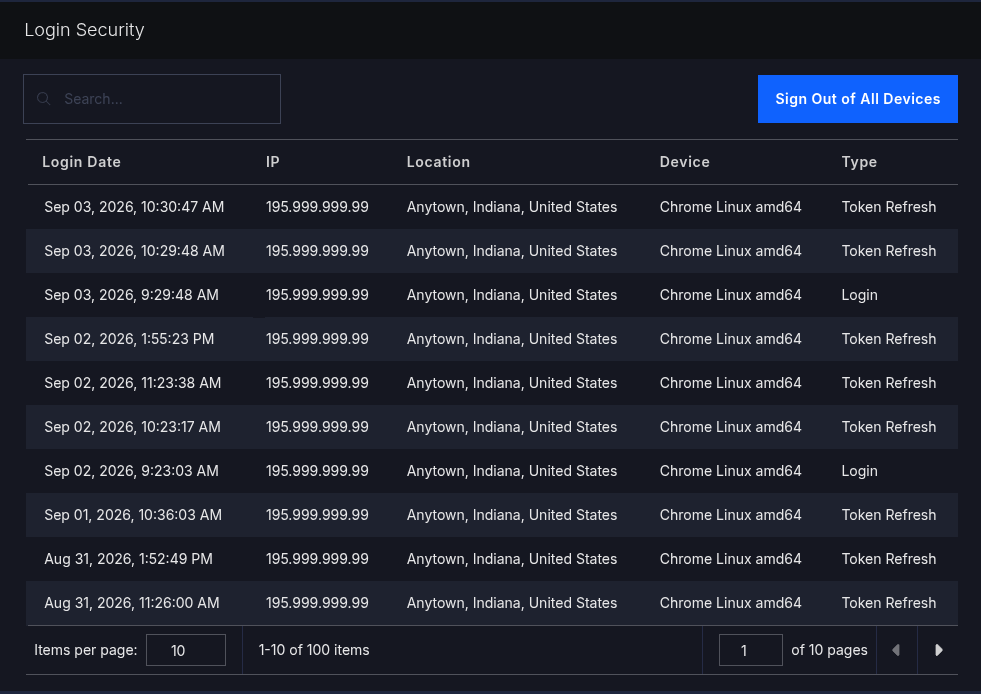
The table contains the following columns:
- Login Date: The date and time when the sign-in or token refresh occurred. The date and time use the time zone you chose on the Account Details screen.
- IP: The IP address of the device you were using during the sign-in or token refresh.
- Location: The locality associated with the IP address.
- Device: The type of device you were using during the sign-in or token refresh.
- Type: Contains Login or Token Refresh, depending on which event this row represents.
You can click the column headers to sort the table by the value in that field. Click the header again to reverse the sort, and click it a third time to remove the sort.
Signing Out of All Devices
You can Sign Out of All Devices from this screen. You might want to sign out of all devices if you are concerned that a device that is signed in to Ringba might have been compromised.
If you click Sign Out of All Devices, Ringba signs you out of all accounts where you use the same email address as you're signed in with when you click the button. If you are signed in with the same email address on multiple devices, such as your laptop computer and your smart phone, Ringba signs you out of all of them.
The next time you sign in with that email address from any device, Ringba prompts you for your username and password, followed by the multi-factor authentication (MFA) code from your authenticator app, even if you selected Remember this device on the MFA code screen.
If you sign in to Ringba accounts with different email addresses, clicking Sign Out of All Devices might not sign you out of Ringba everywhere. For example, say you sign in to your own Ringba account with admin@example.com on your laptop, and also sign in to your buyer's Ringba account with partner@example.com on your smart phone. If you click Sign Out of All Devices on your laptop, your Ringba session on your phone is unaffected because you used a different email address to sign in.
Login Security FAQ
Can I sign other users out of my account?
No. Clicking Sign Out of All Devices is self-service only. You cannot sign another user out.
What should I do if I need help?
If you have any questions or need additional help, please reach out to our support team via chat or email at support@ringba.com.