
A ring tree target (RTT) is the part of a ring tree (RT) that represents an entity that can accept a call. Your ring tree pings all eligible RTTs at the same time to identify the highest bidder for the call. An RTT can be associated with a buyer, and a buyer may have more than one RTT.
Ring trees are available to admin users. Ring trees are available in the following Ringbasubscription plans: Professional and Enterprise.
Tip: Setting up an RTT involves integration with your buyer’s API. Many users prefer to get help setting up RTTs. See How do I get help with Ringba? for instructions on how to engage Support help with your RTTs.
This article contains the following sections:
- Ring Tree Targets
- Manage Ring Tree Targets Screen
- How to Set Up a Ring Tree Target
- How to Add an RTT to a Ring Tree
- How to Export a Spreadsheet of Ring Tree Targets
- Ring Tree Target FAQ
If you are setting up a Ring Tree Target to receive dynamic bids from a buyer who is a Ringba client, see also How do I create an RTT from a Buyer's RTB ID? for specific instructions.
Ring Tree Targets
Like a target, an RTT is the receiving party of a call routed through the Ringba platform. What makes an RTT special is that it is a part of a ring tree.
Note: An RTT is not the target number itself, but a third-party server that Ringba contacts on demand to obtain potential call targets. The contact mechanism is a GET or POST request, depending on the provider's own API settings.
When you set up your RTT, you configure options that help the application know whether the RTT is eligible for a particular call. For example, you configure the hours of operation so the ring tree doesn’t bother sending a call to a call center that is closed. The platform determines whether the RTT is eligible based on the values you enter in the following fields:
- Hours of Operation.
- The Reroute Attempts field that appears if you enable Revenue Recovery.
- Fields in the Cap Settings section, which can limit how many calls you send per hour, day, month, and overall.
- Fields in the Concurrency Settings section, which can limit how many calls an RTT can have at a time.
- Fields in the Restrict Duplicate Calls Settings section, which control calls from the same number going to the same target.
- Values in the Tag Routing Filters section, which indicate characteristics a call must have to be sent to the RTT. For example, an RTT might take calls only from a certain ZIP Code.
These sections are described in more detail in How to Set up a Ring Tree Target later in this article.
You can create an RTT to ping an RTB campaign. If you are creating this kind of RTT, see Create a Ring Tree Target to Ping and RTB Campaign for specific instructions.
Manage Ring Tree Targets Screen
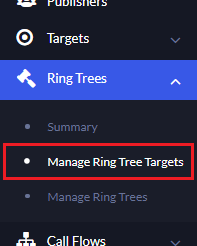
You navigate to the Manage Ring Tree Targets screen by clicking Ring Trees > Manage Ring Tree Targets in the left navigation bar.
A table appears with a row for each RTT already in your account. The Actions column in this table contains useful buttons you can use to manage your RTTs.
From this screen you can:
- Search: Use the search bar at the top of the screen to search for RTTs by name or ID.
- Filter: Select an option from the drop-down list next to the search bar to filter the list of RTTs.
- Export as CSV: Click the Export CSV button at the top of the screen. See How to Export a Spreadsheet of Ring Tree Targets later in this article for step-by-step instructions.
- Choose columns: Click the gear icon at the top of the screen to select which columns to show on this screen. You can click most column headers to sort the list by values in that column.
-
Edit icon: Click this icon in the Actions column to open the RTT so you can manage the details.
Tip: You can also click the RTT name to open it. - Pause: Click this icon in the Actions column to temporarily stop calls from going to this RTT.
-
Duplicate Ring Tree Target: Click this icon in the Actions column to create a copy of this RTT.
Note: When you duplicate, Ringba makes a copy of the RTT that matches the settings exactly. The copy is separate from the original, so if you need to make a change to both, you must update both RTTs individually. - View Reports: Click this icon in the Actions column to go to the Reporting screen and see data filtered for this RTT.
- Reset Caps: Click this icon in the Actions column to reset the RTT's numbers to zero. This tool lets RTTs start receiving calls again if they had stopped due to hitting a cap.
-
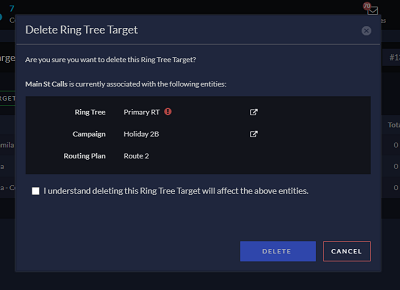
Delete Target: Click this icon in the Actions column to delete this RTT. When you click this button, a confirmation window appears so you can see the ring trees, routing plans, and campaigns related to this RTT before proceeding.
-
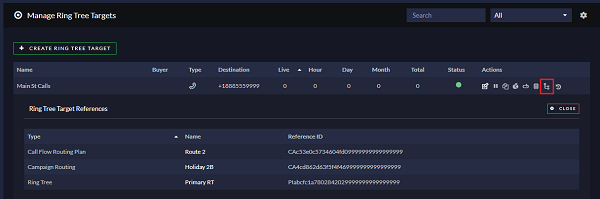
Show References: Click this icon in the Actions column to see a list of ring trees, routing plans, and campaigns related to this RTT.
- View Activity: Click this icon in the Actions column to see the change history of this RTT.
How to Set Up a Ring Tree Target
Use the following steps to set up a ring tree target:
-
Navigate to Ring Trees > Manage Ring Tree Targets in the left navigation.
The Manage Ring Tree Targets screen appears. - Click the Create Ring Tree Target button at the top of the screen.
- Complete the fields on the screen. The rest of this procedure describes each section of fields. You can also use the tool tips in the application to learn about each field.
- When all the fields are complete, click the Create Ring Tree Target button.
General Information
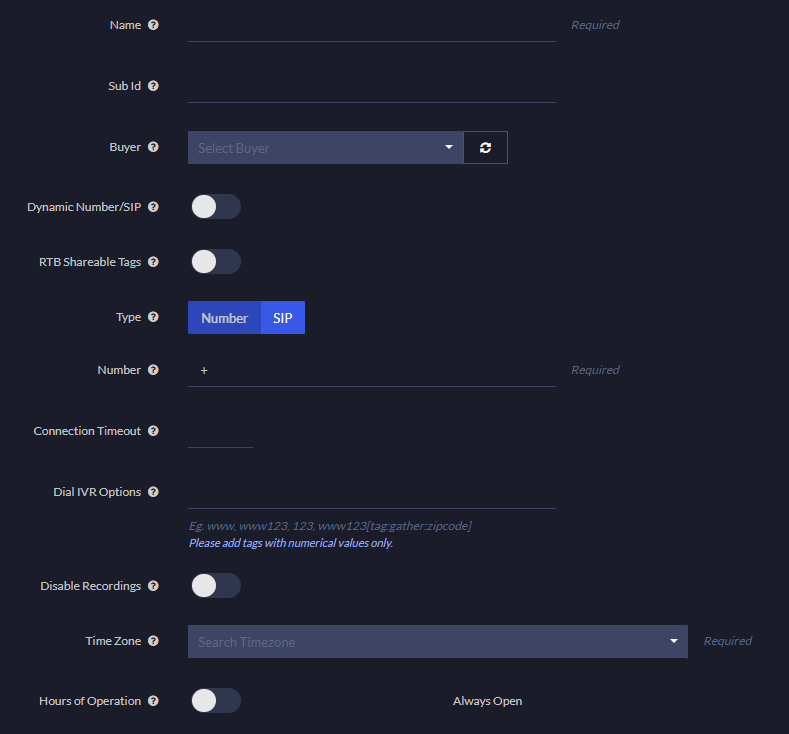
The first section of fields is where you specify general information about the ring tree target. You must enter the RTT’s name, time zone, and the number, in E.164 format, the application dials to connect the call when the RTT is chosen to receive the call. If you toggle on the Dynamic Number/SIP switch, the screen prompts you to configure Dynamic Number/SIP Parsing in the Request Settings section, covered later in this article.
Note: The value you set in the Connection Timeout field may be slightly exceeded if a connection attempt, later in the process, is started and has a longer effective timeout.
If this RTT will be used in real-time bidding, you configure that information here as well. See Create a Ring Tree Target to Ping an RTB Campaign for specific instructions on how to create an RTT for RTB.
Important: When you toggle on the RTB Shareable Tags switch, the Request Settings section later on this screen becomes unavailable. Ringba immediately reverts any parsing steps you previously configured in that section back to the default. If you close the ring tree target without saving, your custom parsing steps reappear the next time you open it. If you save the ring tree target, however, your custom parsing steps will not reappear, even if you toggle the switch back off again.
If you want to configure special revenue recovery values for this RTT, you set those in this section. When you choose Enabled for Revenue Recovery, fields appear where you can set the specific values for this RTT:
- Connection Threshold to Reroute: This is the number of seconds a call must be connected to this RTT not to be rerouted. You might like to set this value at the RTT level to account for the IVR flow or other factors affecting how long it takes this RTT to convert a call.
- Reroute Attempts: This is the number of previous connections a call can have and still be accepted by this RTT. For example, if you set this value to 2, the RTT accepts calls that have been connected and rerouted 2 times before.
See Revenue Recovery FAQ for information about how Ringba uses the settings you configure here together with the settings you configure at the buyer and campaign level.
Cap Settings Section
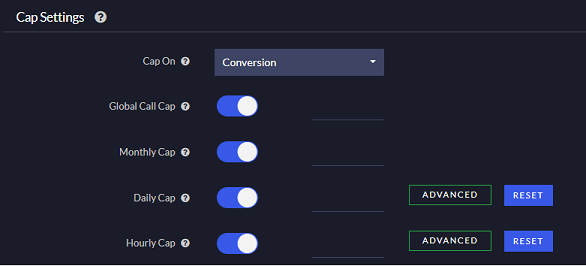
Use the fields in the Cap Settings section to limit the traffic the RTT can receive per month, day, hour, or all time. You can cap the RTT by the number of connected calls or number of converted calls.
The fields in this section are optional; you can choose not to cap the RTT.
Concurrency Settings Section

Use the fields in the Concurrency Settings section to limit how many live calls the RTT can have at the same time. You can set a single max value or you can specify a different value for each hour of the day by toggling on the Hourly Concurrency switch. You can even specify a different value for each hour of the day for each day of the week by clicking the Advanced button to open the weekly editor.
The fields in this section are optional; you can choose not to limit concurrent calls. However, if you do limit calls, you can enable only one of the switches in this section, not both.
Restrict Duplicate Calls Settings Section
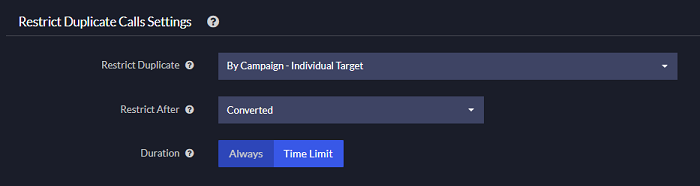
Use the fields in the Duplicate Calls Settings section to indicate whether the ring tree target can receive subsequent calls from the same number. If you choose to restrict duplicate calls, you can indicate a time limit and whether to restrict all calls that connected or only calls that converted.
The fields in this section are optional. You can choose not to restrict duplicate calls or you can choose to default to the duplicate calls settings you specified on the buyer.
Predictive Routing Settings Section
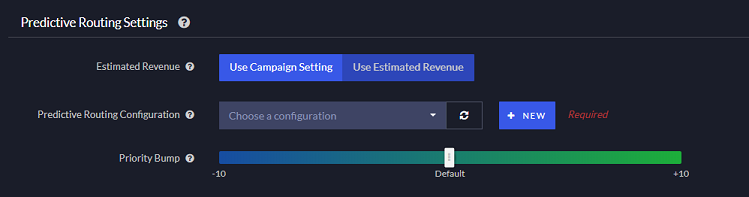
The Predictive Routing Settings section appears on this screen if predictive routing is enabled in your account. If you do not see this section but want to use predictive routing, contact your account manager.
Use the fields in the Predictive Routing Settings section to incorporate the ring tree target’s previous performance into the logic of choosing the winning bidder. You can configure predictive routing settings at the campaign, buyer, or target level. See Predictive Routing for more information.
The fields in this section are optional. You can choose to leave the controls in this section in the default position.
Revenue Settings Section
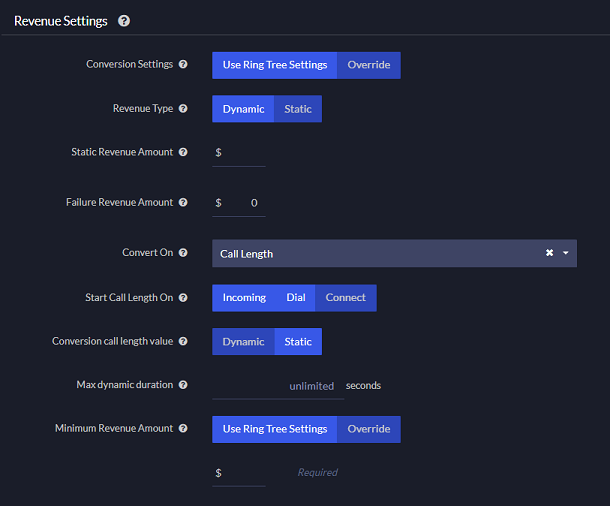
Use the fields in the Revenue Settings section to override the revenue settings you configured for the ring tree. These fields specify when and how much you are paid for the call.
The fields in this section are optional. You can choose to use the default revenue settings on the ring tree instead of configuring specific values for this ring tree target.
Error Settings Section
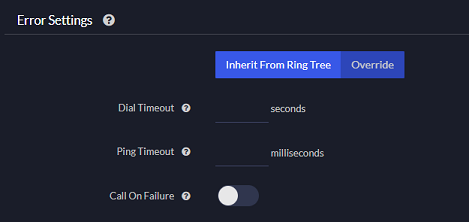
Use the fields in the Error Settings section to override the error settings you configured on the ring tree. These fields specify how long to wait before considering a dial or a ping to be timed out. You also choose whether to send a call even if the ping fails.
The fields in this section are optional in that you can choose to use the default error settings on the ring tree instead of configuring specific values for this ring tree target. If you select Override, however, these fields are required.
Request Settings Section
Note: This section appears only if you leave the RTB Shareable Tags switch at the top of the screen toggled off.
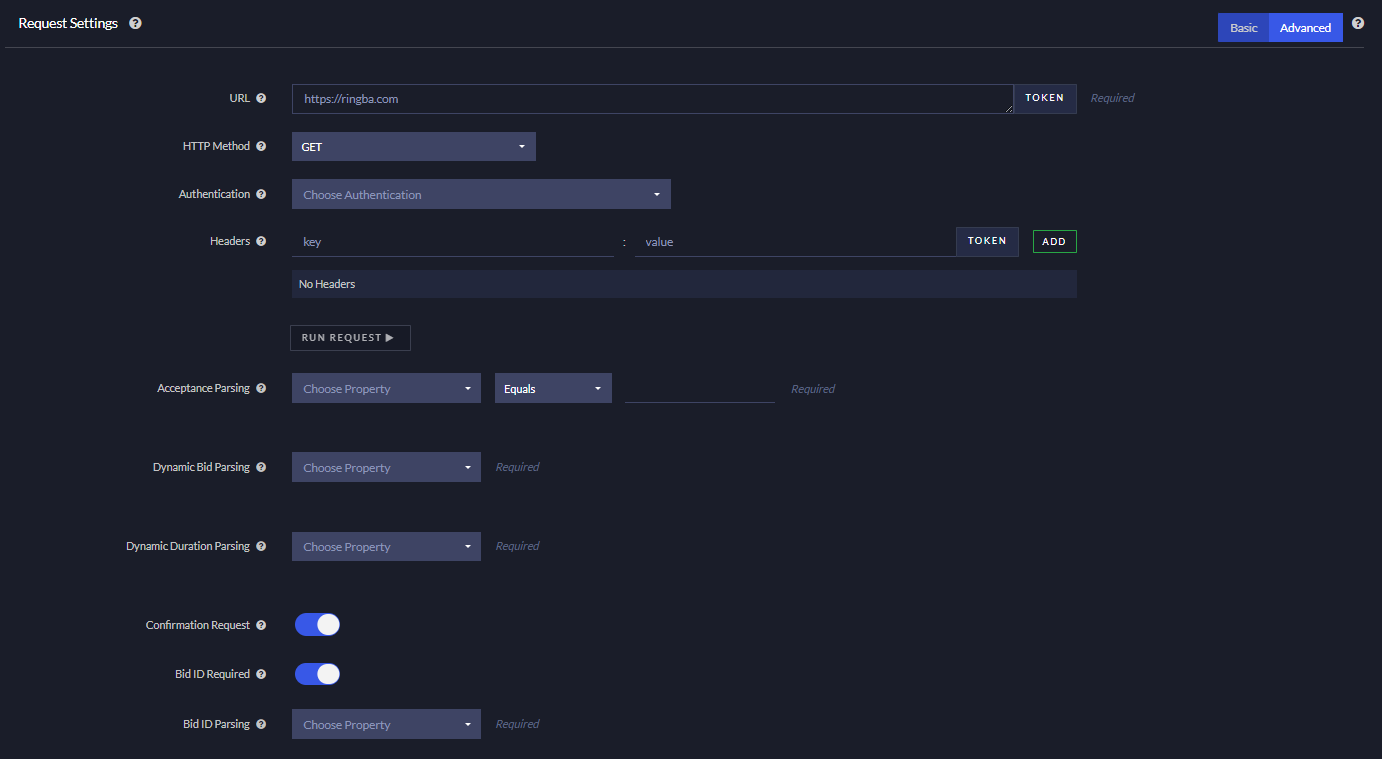
Use the fields in the Request Settings section to configure the request Ringba sends to the ring tree target’s third-party API to retrieve a bid for the call. This is the most important section of the RTT configuration and requires some coding ability.
This section of the screen offers two editor options: Basic and Advanced:
- Choose the Basic editor to send a test request to the API and auto-populate the parsing step properties based on the response. The Basic editor can support JavaScript parsing only.
- Choose the Advanced option to populate the parsing step properties manually. You must choose this mode if you are using JPath, XPath, or Regular Expression parsing.
Tip: Use the control in the bottom-right corner of the URL field to drag the bottom of the field down to see long URLs.

URL, Method, and Authentication
For either editor option, you must enter the URL of the API endpoint to ping with the request. The URL usually contains some vertical or client identification.
Note: You can use any macro/tag to reference tags already in Ringba, such as [tag:Gather:zipcode] or [tag:Address:Zip 5].
You specify which authentication to use, if the ring tree URL requires a dynamic token. See Authentications for details about authentications.
You also choose the HTTP method to use. You can choose GET, POST, PUT, PATCH, or DELETE.
Note: A request body may be required if you choose POST, PUT, or PATCH.
If the HTTP Method requires a body, use the Headers field. You can include tags in the body. Use the Token button to help find tags in your account. For example, [tag:Gather:zipcode] or [tag:Address:Zip 5].
Important: If you have a nested array on the object, you should escape the brackets, as in the following example:
{"CampaignId": 1897,"ZipCode": [tag:Address:Zip 5][tag:Gather:zipcode],"FilterAnswers": [[{"FilterId": 1,"Answer": [tag:Gather:insurancestatus]}]]}Parsing Configuration
The two editors become different when you get to the parsing options. The parsing fields configure how the application interprets the response from the third-party API.
The parsing sections can be configured using either JPath, XPath, Regular Expressions, or JavaScript. The Basic editor works only with JavaScript parsing. You must choose the Advanced editor for all other types of parsing.
All ring tree targets require you to configure Call Acceptance Parsing. There are up to three additional kinds of parsing to configure: Dynamic Bid Parsing, Dynamic Number/SIP Parsing (if the Dynamic Number/SIP switch is enabled), and Dynamic Duration Parsing.
When you use the Basic editor, you click the Run Request button. The application sends a test request and populates the screen with the properties from the response. For the Acceptance Parsing field, you configure the operator and value for each of the properties. For the other parsing fields, you select the parameter that contains the value.
When you use the Advanced editor, you enter the Parsing Expression manually. You can send a test request to the third-party API outside of the Ringba application to receive the response and see what properties it includes.
You can define several filtering combinations and steps to obtain the desired result. For the following four sections, you can choose how you want to treat the provider's response to get the corresponding information you need from each and route the call accordingly.
You can choose one of four options for parsing code, as described below with also a basic example of the usage:
JavaScript:
input = JSON.parse(input);
return input.amount
JPath:
x.buyers[0].callTrackingNumberXPath:
/buyers[1]/callTrackingNumberRegular Expression:
You can also use Regex for parsing the response.
For the Call Acceptance Parsing, advanced mode has an option to create a pipeline using the Add Parsing Step button.
For each step added, it should return a value for the next one to use. It is possible to nest one or more parsing steps; however, for most scenarios one step is enough. The intention is to map data from the provider's response so Ringba can dynamically access it.
Confirmation Request Settings
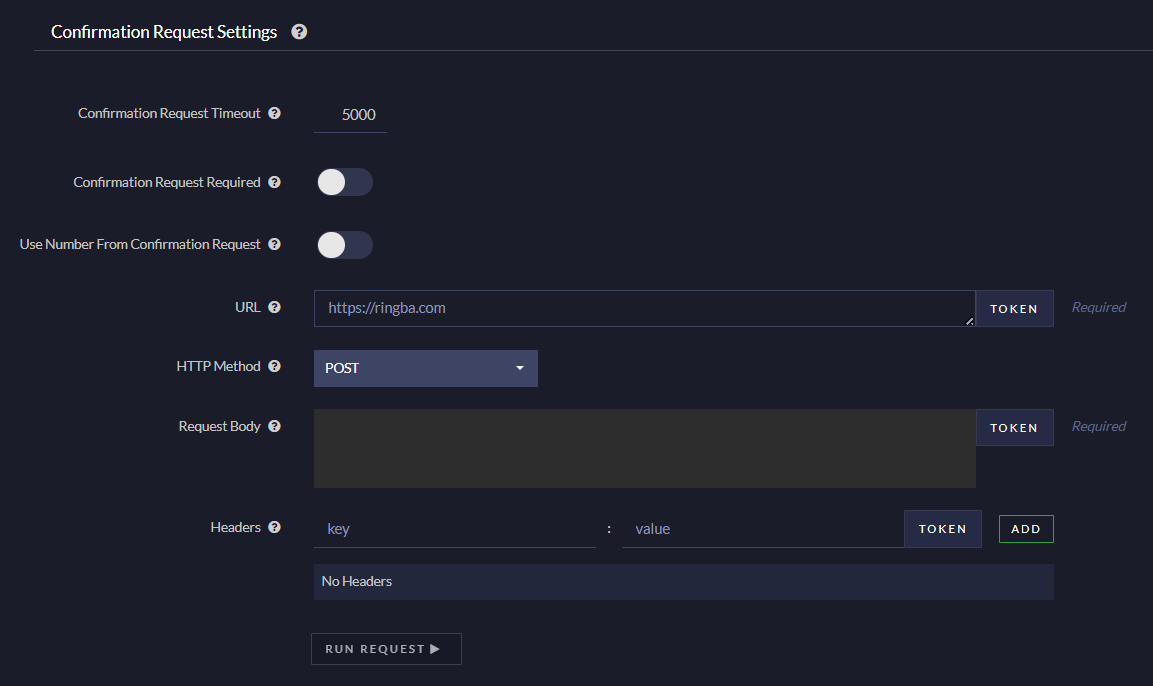
Regardless of which editor option you use, you specify whether to send an API request to confirm with the RTT that it has won the call. If you toggle on this switch, you convert the RTT to a two-step RTT. See What is the difference between a one-step and two-step Ring Tree Target? for more information.
Tag Routing Filters Settings Section

You use Tag Routing Filters to create rules that use tags on the call to decide whether to allow or block the RTT from receiving the call. See Tag Routing Filters for more information.
Tag routing filters are optional. You can send calls to targets without regard to the metadata you have about that call.
How to Add an RTT to a Ring Tree
Now that you have set up your ring tree target, you can add it to your ring tree. See the Ring Tree feature guide for step-by-step instructions.
How to Export a Spreadsheet of Ring Tree Targets
You can export a CSV file that contains all the ring tree targets in your account. The CSV contains the same data you see on the Manage Ring Tree Targets screen.
To export a spreadsheet of ring tree targets:
- Navigate to Ring Trees > Manage Ring Tree Targets.
- Click the Export CSV button in the upper right corner.
A CSV file is downloaded to your browser's downloads folder. The CSV contains a row for each ring tree target. It contains the following columns:
- Name: The RTT name
- Type: Indicates whether the RTT uses a number or a SIP
- Destination: The number or SIP the RTT uses
- Live: The number of calls connected to this RTT at the moment you exported the report.
- Hour: The number of calls that have connected to this RTT in the last hour, as of the time you exported this report
- Month: The number of calls that have connected to this RTT in the current month
- Total: The total number of calls that have ever connected to this RTT
- Status: A value that indicates whether the RTT is open, capped, or red-disabled
- Buyer: The name of the buyer associated with this RTT, if it exists
- Enabled: A value that indicates if the RTT has been disabled
Note: If an RTT with a Status of red-disabled has FALSE in the Enabled field, it is disabled. If it has TRUE in the Enabled field, it is closed.
Ring Tree Target FAQ
Can I add the same ring tree target to multiple ring trees?
Yes. If you add a ring tree target to a subsequent ring tree, Ringba duplicates the ring tree target. A message appears when you add the RTT to let you know it will be duplicated.
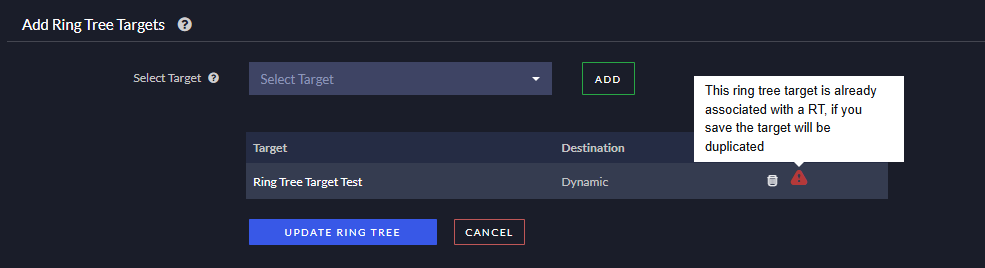
Ringba creates a second RTT with settings that match the original RTT exactly.
Note: Once you duplicate a ring tree target, the two copies are not connected. If you need to make a change to the configuration, you must make it in both places.
What should I do if I need help with Ring Tree Targets?
Many users ask Ringba to create or review their ring tree targets. See the Open a Request to Create or Review a Ring Tree section of the How do I get help with Ringba? article for specific instructions on how to contact support and what information to provide in your request.