
Ringba MCP lets AI assistants such as Claude, Cursor, and GitHub Copilot in VS Code connect to your Ringba account. Once it is connected, you can ask your assistant about your Ringba data in plain language, and it uses the Ringba API to find the answer.
It is included in all Ringba subscription plans: Business, Professional, and Enterprise.
You must already have an AI assistant to enable Ringba MCP. Enabling this feature requires running a command in a terminal or editing a configuration file.
This article contains the following sections:
- Ringba MCP
- Enabling Ringba MCP
- Choosing a Setup Method
- How to Set Up Extension Configuration
- How to Set up Ringba MCP with Command
- How to Set Up Ringba MCP with a JSON Configuration
- How to Set Up Ringba MCP with URL and Headers
- Troubleshooting
- Removing Access
- Ringba MCP FAQ
Ringba MCP
Ringba MCP lets your AI assistant have read-only access to your Ringba account to answer questions you have about your configuration and data. Below are some categories of questions you might ask your AI assistant once you have set up Ringba MCP.
Call Diagnostics
- “Why didn’t this call generate revenue or a payout?”
- “What happened in Real Time Bidding?”
You can use your AI assistant to help with understanding call logs, call outcomes, and responses from ring trees and their individual ring tree targets (RTTs).
Account and Data Visibility
- "How many campaigns are running right now?"
Retrieve account information, count campaigns, list targets and RTTs, and identify available call-log columns and call data.
Optimization and Account Reviews
- "Can you check this call flow for errors?"
- "How can I improve this RTT?"
If you previously would have called Ringba support to review your accounts, inspect specific calls, or identify improvements, now you can start with Ringba MCP.
Onboarding Help
- "What should I do now to finish my Ringba setup?"
- "How do I invite a buyer?"
As you're learning what you can do with Ringba, you can ask your AI assistant to help you learn to implement the features and accomplish your goals.
Enabling Ringba MCP
This article covers four different methods to set up Ringba MCP: Extension configuration, Command, JSON configuration, or URL and Headers. The method you choose depends on the AI application you use.
The setup methods use these pieces of information:
-
Server URL: Use
https://mcp.ringba.com/mcp -
API access token: Create one by navigating to Security > API Access Tokens and clicking the Add API Access Token button. See API Access Tokens for step-by-step instructions.
Important: Ringba shows your API access token only once, when you create it. Copy it before you close the window. If you lose it, delete it and create a new one.
Note: Treat your API access token like a password. It never expires, and anyone who has it can use your Ringba account through the API. Do not share it, and do not save it in a file that is shared with others or stored in source control. -
Account ID: Click the person icon above your company name, then click the copy icon next to it. See How do I find my Ringba account ID? for step-by-step instructions.
Note: Your account ID starts with "RA" and tells Ringba MCP which of your accounts to work in. - ringba.mcpb: If you use the extension configuration approach, you need the configuration file. You can download it by clicking this link: ringba.mcpb.
Throughout this article, replace YOUR_API_TOKEN with your API access token and YOUR_ACCOUNT_ID with your account ID.
Choosing a Setup Method
Choose a method that works with your AI application:
- Claude Cowork: Extension Configuration
- Claude Code: Command (recommended) or JSON configuration
- Cursor: JSON configuration
- GitHub Copilot in VS Code: JSON configuration
- Any other client that supports remote MCP servers with custom headers: URL and headers
How to Set Up Extension Configuration
Use this approach to set up Ringba MCP with Claude Cowork. Use the following steps:
- In Claude Cowork, open the menu and click Settings.
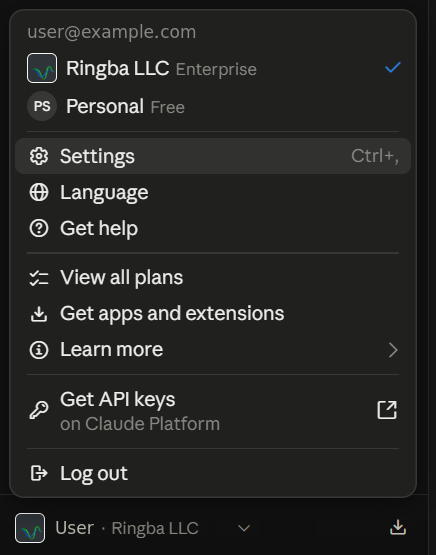
A screen of settings appears. -
In the left navigation, click Extensions to open the Extensions screen. Then click the Advanced settings button.
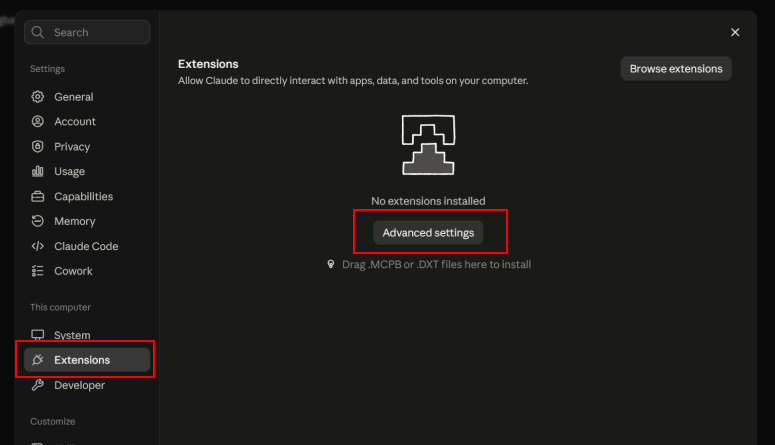
-
Scroll to the Extension developer section and click Install extension.
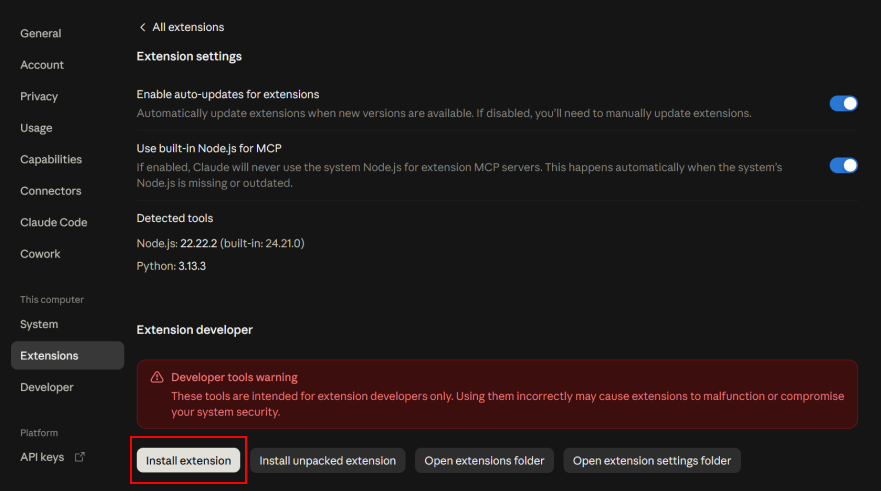
-
Find the ringba.mcpb file and select it.
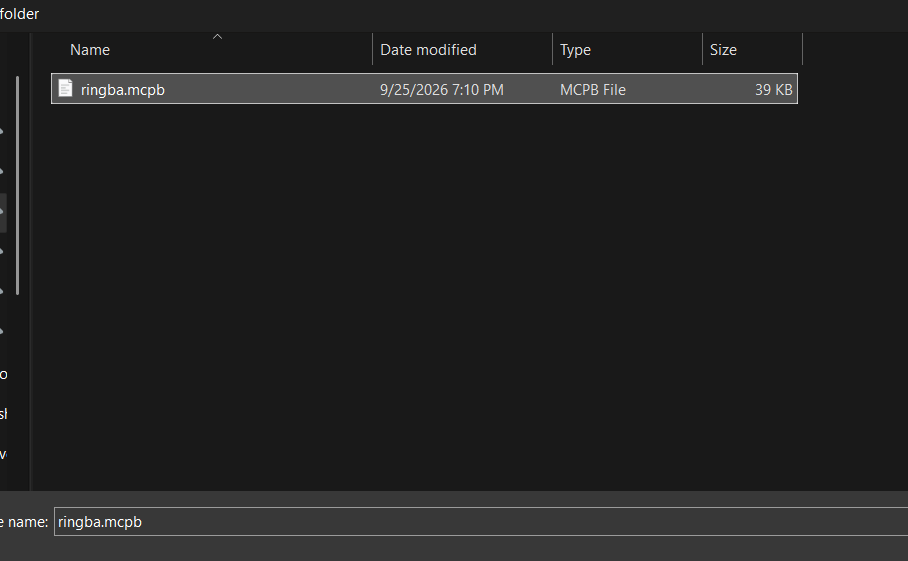
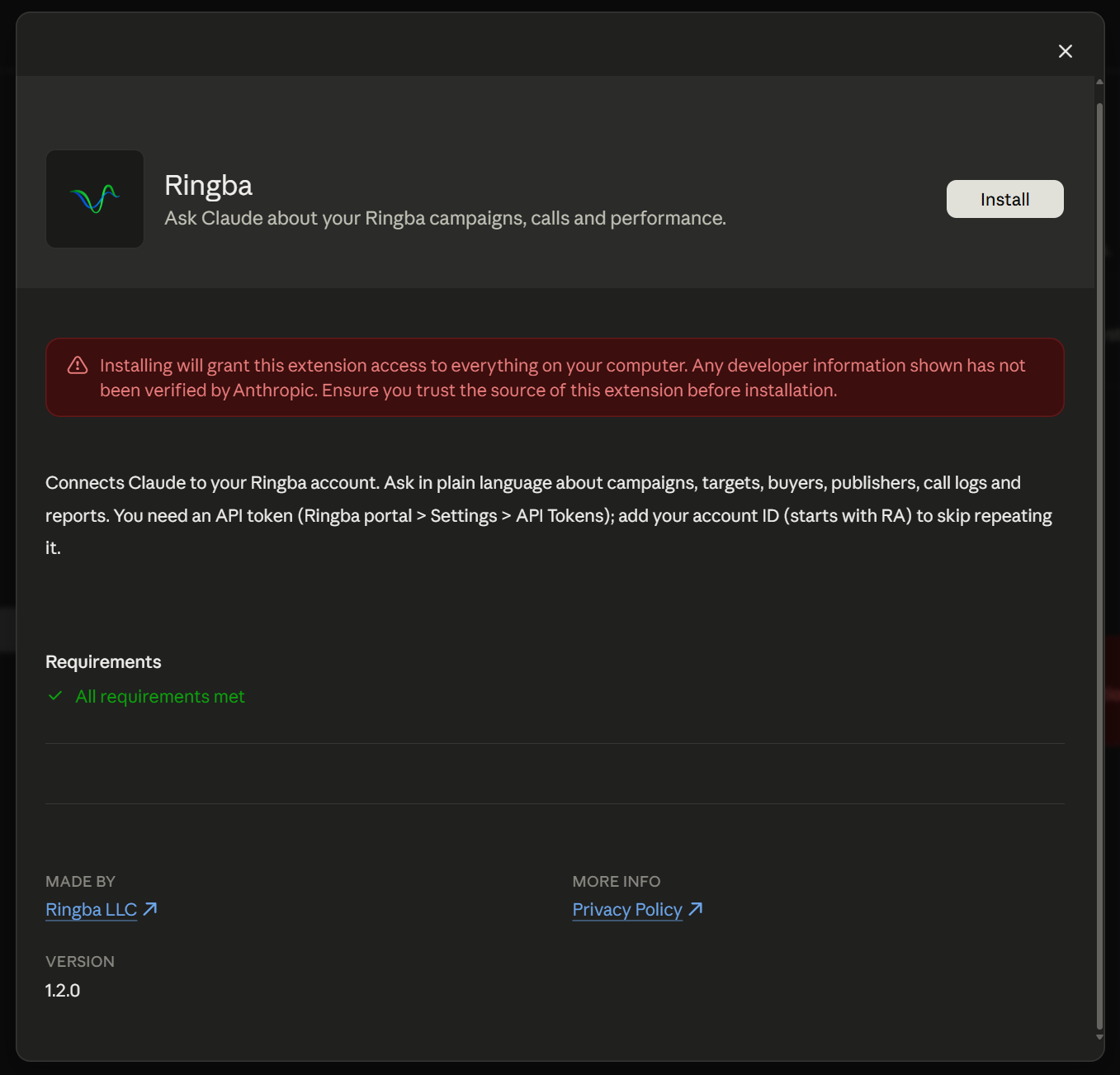
A screen with information about the MCPB file appears. -
Click Install.
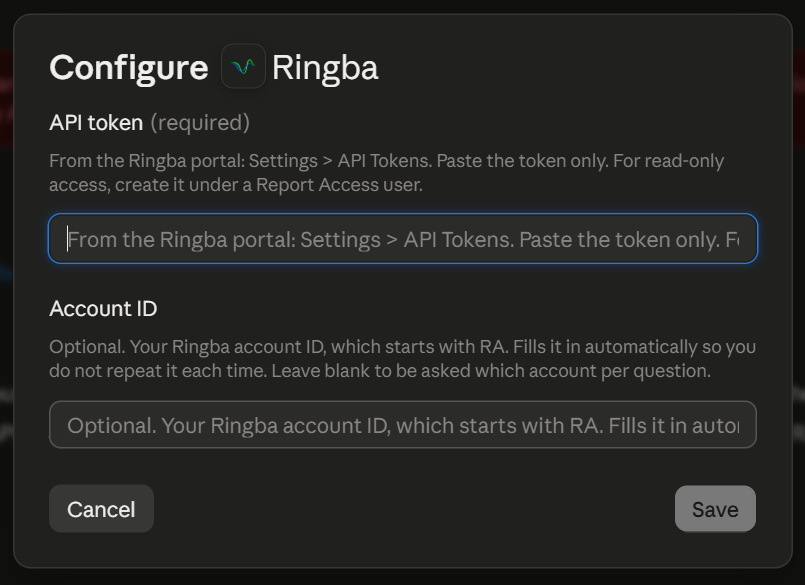
A configuration screen appears. -
Enter your API token and (optionally) your Account ID and click Save.
-
Ensure the Enabled switch is toggled on.
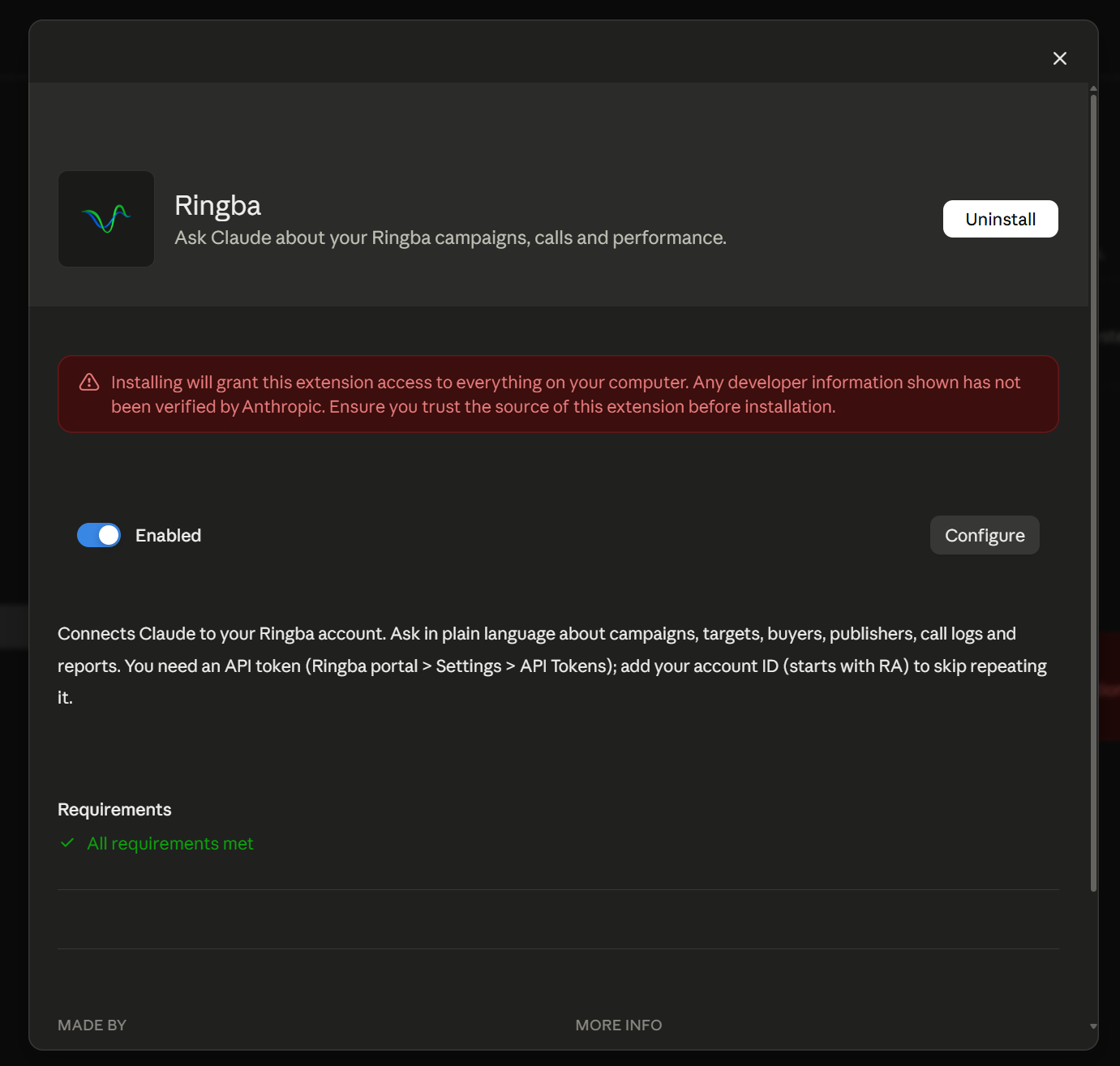
Note: This switch is not toggled on by default, and toggling it on is required to use the feature.
Ringba MCP is now enabled in your Claude Cowork client. Test the extension by asking Claude about the MCP or something in your Ringba account.
How to Set up Ringba MCP with Command
This is the preferred approach for enabling Ringba MCP with Claude Code. You can also use the following section abut JSON configuration for Claude Code.
Use the following steps to register Ringba MCP with a single command. These steps register the server for your user, so Ringba MCP is available in every project you open with Claude Code.
- Install Claude Code if you have not already. See the Claude Code documentation for instructions.
- Open a terminal. On Mac, open Terminal. On Windows, open PowerShell.
-
Copy the command for your platform, and replace
YOUR_API_TOKENandYOUR_ACCOUNT_IDwith your own values.
Mac / Linuxclaude mcp add --transport http ringba -s user \ https://mcp.ringba.com/mcp \ --header 'Authorization: Token YOUR_API_TOKEN' \ --header 'X-Ringba-Account-Id: YOUR_ACCOUNT_ID'Windows (PowerShell)
claude mcp add --transport http ringba -s user ` https://mcp.ringba.com/mcp ` --header 'Authorization: Token YOUR_API_TOKEN' ` --header 'X-Ringba-Account-Id: YOUR_ACCOUNT_ID' - Paste the command into your terminal and press Enter. Claude Code confirms that it added the ringba server.
-
Run the following command to check the connection:
claude mcp listThe ringba server appears with the status Connected.
Note: On Windows, use PowerShell, not Command Prompt. The Windows command continues onto each new line with a backtick (`), which Command Prompt does not understand.
What's next: Start Claude Code by running claude, and type /mcp at any time to see the Ringba MCP connection and its tools. Try asking a question about your account, such as "Which of my campaigns had the most calls this week?"
How to Set Up Ringba MCP with a JSON Configuration
Claude Code, Cursor, and GitHub Copilot in VS Code all read MCP servers from a JSON file that uses the same format. Copy the following configuration, and replace YOUR_API_TOKEN and YOUR_ACCOUNT_ID with your own values:
{
  "mcpServers": {
    "ringba": {
      "type": "http",
      "url": "https://mcp.ringba.com/mcp",
      "headers": {
        "Authorization": "Token YOUR_API_TOKEN",
        "X-Ringba-Account-Id": "YOUR_ACCOUNT_ID"
      }
    }
  }
}
If the file you are editing already has an mcpServers section, do not replace the file. Instead, add only the "ringba": { ... } entry inside the existing mcpServers section, and separate it from the entry before it with a comma.
Each client reads the file from a different place:
| Client | Available in all your projects | Available in one project only |
|---|---|---|
| Claude Code | Use the command instead |
.mcp.json in the project's root folder |
| Cursor |
.cursor/mcp.json in your home folder |
.cursor/mcp.json in the project's root folder |
| GitHub Copilot in VS Code |
.copilot/mcp-config.json in your home folder |
.mcp.json in the project's root folder |
Your home folder is /Users/yourname on Mac and C:\Users\yourname on Windows.
IMPORTANT: A file inside a project folder is often committed to source control and shared with your team. Because this configuration contains your API access token, prefer the home folder location. If you use a project file, make sure it is excluded from source control (for example, by adding it to your .gitignore file).
Claude Code
Use the following steps to set up Claude Code with a JSON configuration:
- In your project's root folder, create or open the
.mcp.jsonfile. - Paste the configuration, replace the placeholder values, and save the file.
- Start Claude Code in that folder by running
claude. Claude Code asks you to approve the MCP servers in the project's.mcp.jsonfile. - Approve the ringba server.
- Type
/mcpto confirm that the ringba server is connected.
Cursor
Use the following steps to set up Cursor:
- Create or open the
.cursor/mcp.jsonfile in your home folder. - Paste the configuration, replace the placeholder values, and save the file.
- Restart Cursor.
- Open Customize in the sidebar and select MCP. The ringba server appears in the list.
- Make sure the ringba server is turned on.
GitHub Copilot in VS Code
Use the following steps to set up GitHub Copilot in VS Code:
- Create or open the
.copilot/mcp-config.jsonfile in your home folder. - Paste the configuration, replace the placeholder values, and save the file.
- Restart VS Code.
- Open the Command Palette (Ctrl+Shift+P on Windows, Cmd+Shift+P on Mac) and run MCP: List Servers. The ringba server appears in the list.
- In the Chat view, click the Configure Tools button to see the Ringba MCP tools.
Note: VS Code also has an older configuration file, .vscode/mcp.json, and a user configuration file that opens from the MCP: Open User Configuration command. Both use a different format (a servers section instead of mcpServers), so the configuration in this article does not work in them.
How to Set Up Ringba MCP with URL and Headers
Any AI client that supports remote MCP servers with custom headers can connect to Ringba MCP. Look for the place in your client's settings or configuration file where you add a remote MCP server, and enter the following values:
| Setting | Value |
|---|---|
| Server URL | https://mcp.ringba.com/mcp |
| Transport | Streamable HTTP (some clients call it simply "HTTP") |
Header Authorization
|
Token YOUR_API_TOKEN |
Header X-Ringba-Account-Id
|
YOUR_ACCOUNT_ID |
Your client must send both headers on every request to the server URL.
Note: The Authorization value is the word Token, a space, and then your API access token. Ringba does not use the Bearer format, so do not use a client option that adds Bearer to your token automatically.
Example: OpenAI Codex
Codex reads MCP servers from the .codex/config.toml file in your home folder. Add the following lines to that file, replace the placeholder values, and save it:
[mcp_servers.ringba]
url = "https://mcp.ringba.com/mcp"
http_headers = { "Authorization" = "Token YOUR_API_TOKEN", "X-Ringba-Account-Id" = "YOUR_ACCOUNT_ID" }
Run codex mcp list to confirm that the ringba server appears.
Note: Codex also has a bearer_token_env_var option. Do not use it for Ringba MCP, because it sends your token in the Bearer format.
Troubleshooting
If your client shows the ringba server as failed or asks you to sign in, check the following:
-
The
Authorizationvalue. It must beToken, one space, and your API access token, with no extra quotes or spaces. Paste your token only once: a value such asToken Token abc123is rejected. - The API access token. If the token was deleted on the API Access Tokens screen, it no longer works. Create a new one and update your configuration.
- The account ID. It must start with "RA" and belong to an account you can access.
- The terminal on Windows. If the command fails on Windows, make sure you ran it in PowerShell, not Command Prompt.
- The JSON file. A missing comma or bracket stops the whole file from loading. Make sure the file is saved in the location listed for your client, and restart the client after you change it.
Removing Access
To remove Ringba MCP from Claude Code after setting it up with the command, run:
claude mcp remove ringba -s userFor any other client, delete the ringba entry from its configuration file.
To stop a token from working everywhere it is used, delete it by navigating to Security > API Access Tokens. Every client that uses that token loses access to Ringba MCP.
Ringba MCP FAQ
What should I do if I need help?
If you have any questions or need additional help, please reach out to our support team via chat or email at support@ringba.com.